
How to Generate AI Images, Videos, and Audio?
NadouPro's image, video, and audio tools form the core production stack for film creation. From character sheets and storyboard frames, to motion clips, then to scores and character voice-over, they cover the full visual and audio pipeline.
All of the features below can be used on Canvas or in the film-creation Workbench by adding the matching node. Details for each feature follow.
1 What image generation features are available
NadouPro offers a full image generation and editing pipeline, from Text to Image through fine retouching. After you add an Image node on Canvas or in Workbench, pick a mode in the feature panel. Basic generation includes Text to Image, Image Reference, Relight, and Multi-view. Advanced editing includes Photo Parameters, portrait quality enhancement, face retouch, 720° panoramas, and multi-grid layouts.
Supported models: Seedream 5.0 Pro (cinematic frames), GPT Image 2 (ultra-realistic photos with accurate text and layout), Nano Banana 2 (fast generation, strong text rendering and consistency), Nano Banana Pro (multi-image fusion with precise instruction following), Kling O1 (full-pipeline editing from basic to advanced), Midjourney 8 (high-end aesthetics, native high resolution)
For model details, see How to Choose NadouPro Models — Image, Video, and Audio 【Image Models】
1.1 Basic features
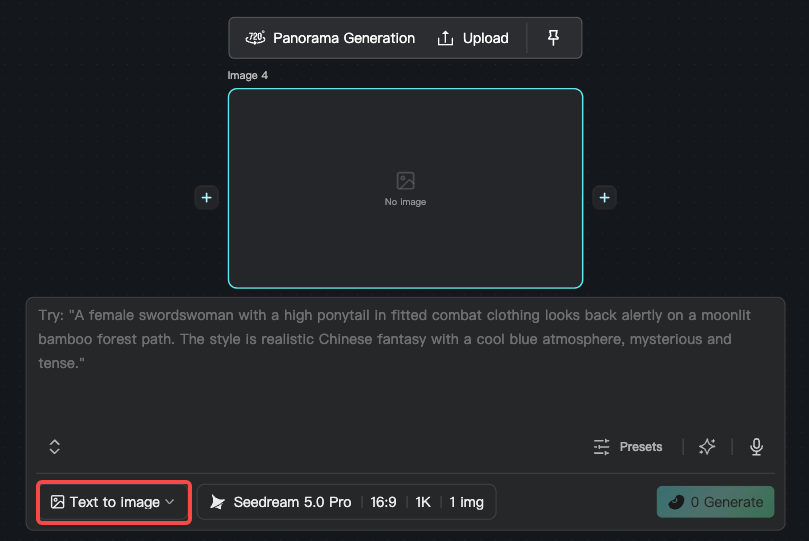
1.1.1 Text to Image
Enter a text description to generate an image. This is the most basic image workflow. It is useful for storyboard frames, character concepts, environment designs, posters, and similar stills. In an Image node, choose "Text to Image", enter a prompt, and pick a model.
1.1.2 Image Reference
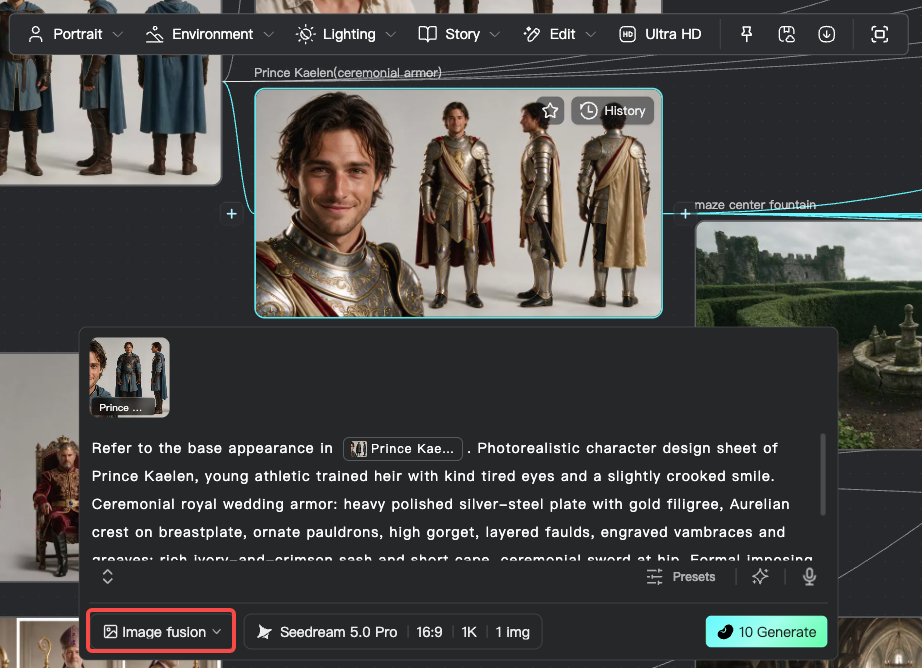
Use several images as references and fuse them into a final image. This is useful when you need to combine multiple characters, scenes, or style elements, such as merging traits from different characters into one new image. In an Image node, choose "Image Reference", upload reference images, and enter a description.
1.1.3 Relight
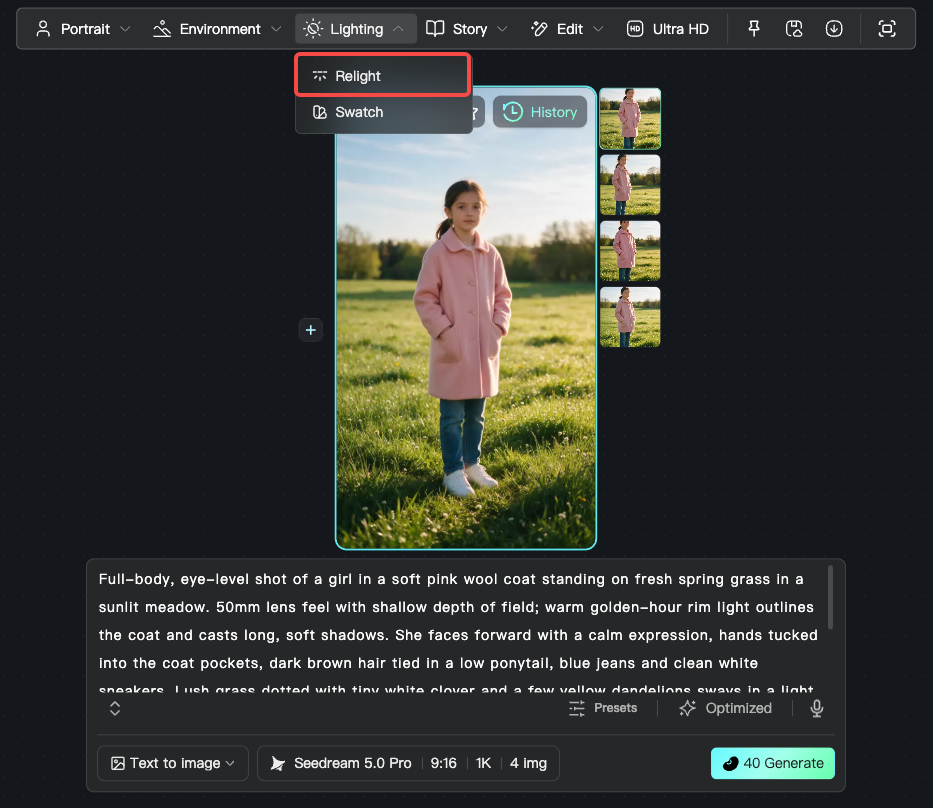
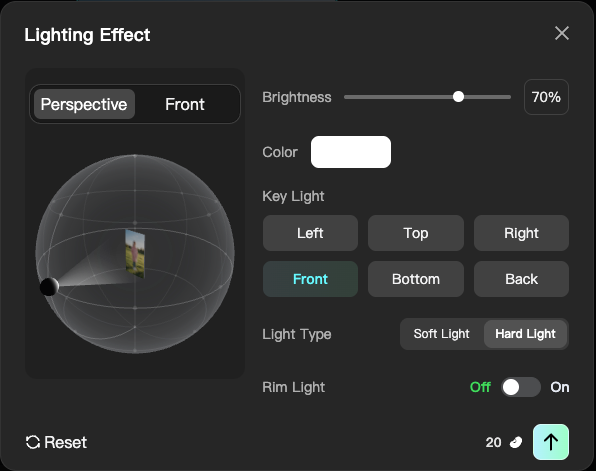
Relight an existing image by adjusting light position, brightness, color, and related parameters to change the mood. This is useful for shifting the emotional tone of an existing still, such as turning a daytime scene into night, or strengthening dramatic lighting. In an Image node, choose "Relight" and set the parameters.
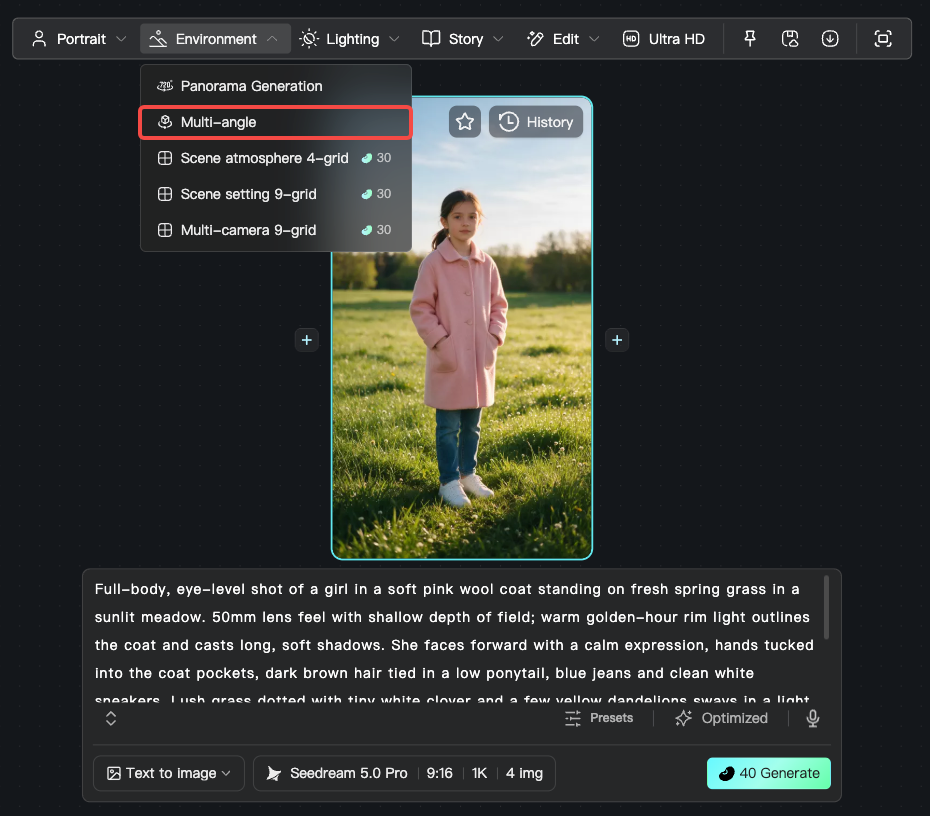
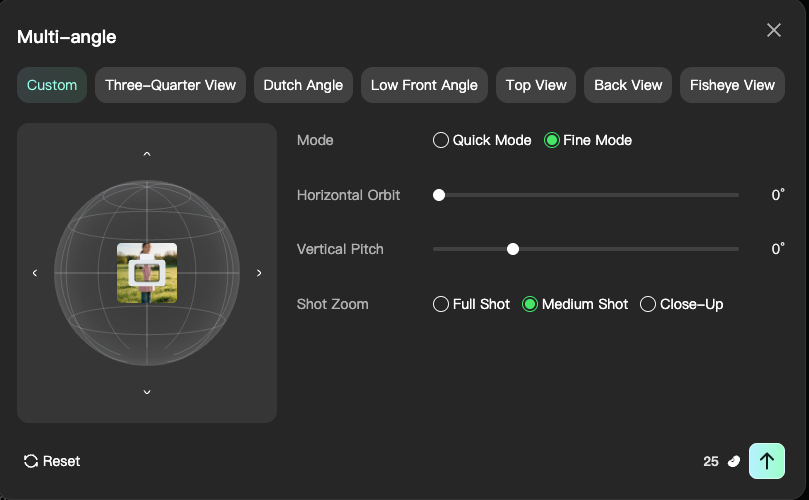
1.1.4 Multi-view
Change the camera angle of an image to generate additional viewpoints. This is useful when you need other angles of the same scene or character, such as side, back, high, or low angles. In an Image node, choose "Multi-view" and set the parameters.
1.2 Advanced features
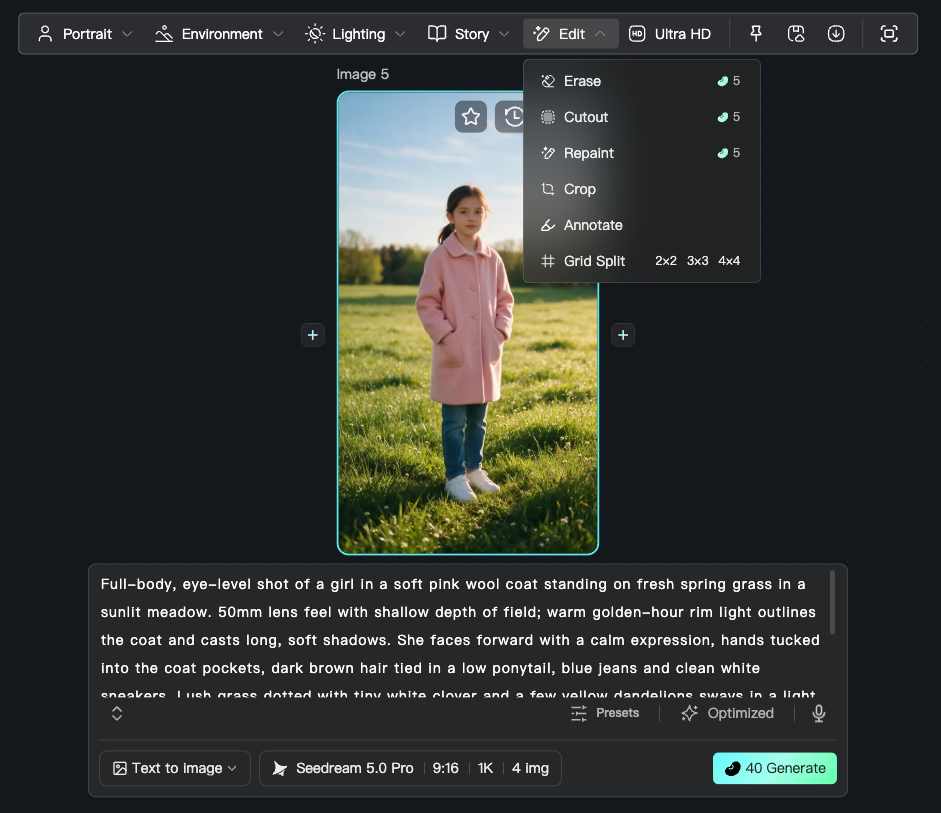
1.2.1 Image editing
Includes erase, cutout, inpaint, crop, annotation, and grid split.
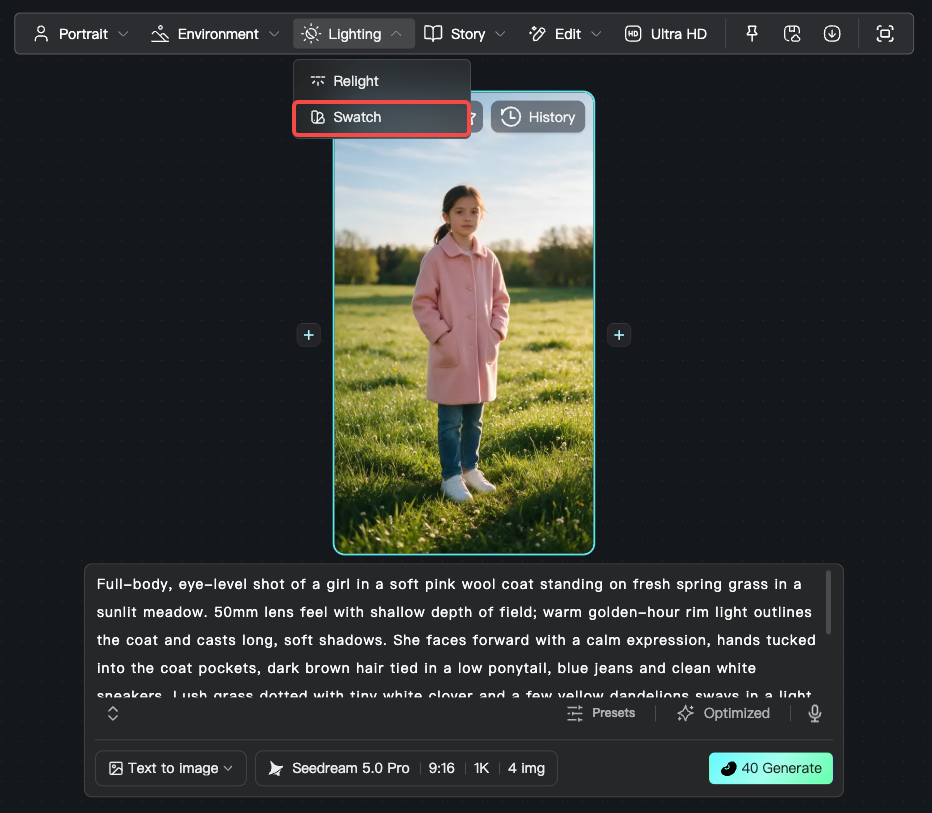
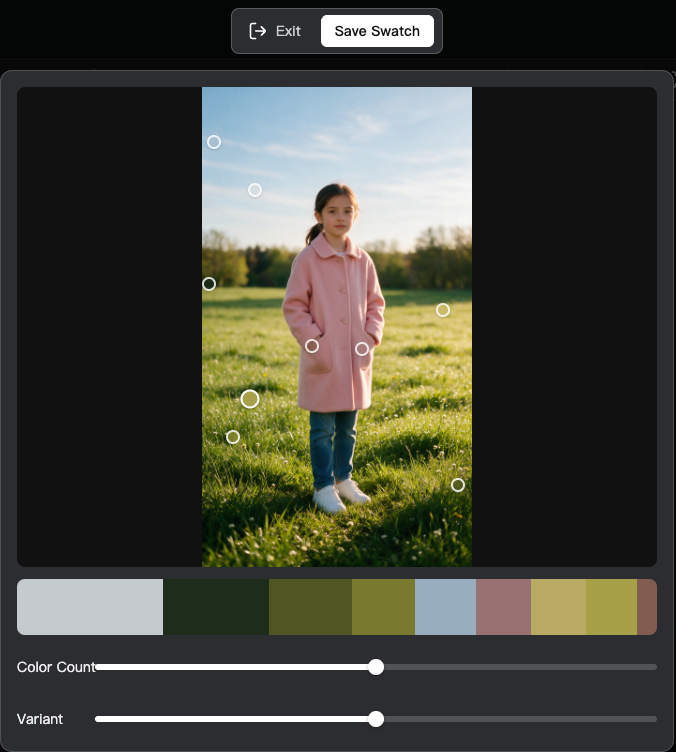
1.2.2 Color palette
In an Image node, click 【Color palette】 to save the image's color palette.
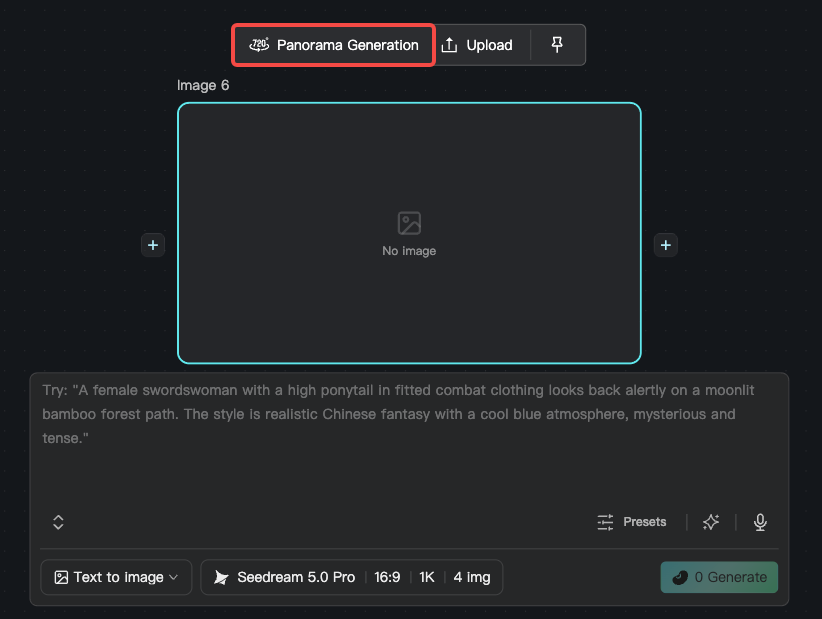
1.2.3 720° panorama generation
Generate a panorama in one click for multi-angle scene consistency. After generation, you can use it in 3D Director Stage for immersive spatial exploration and multi-camera blocking. In an Image node, choose 【Panorama generation】 and enter a scene description.
- Entry and steps: open 【Canvas】 - click any Image node - 【Panorama generation】, or open 【Workbench】 - 【Subjects】 - 【Panorama generation】 to customize a scene.
1.2.4 Multi-grid image generation
Multi-grid generation can produce several viewpoints or states at once, keeping character and scene consistency:
| Grid type | Use | Notes |
|---|---|---|
| Character three-view | Front / side / back character sheets | Keep the character consistent across shots |
| Expression nine-grid | 9 expression states | Enrich character performance |
| Scene nine-grid | 9 angles of the same scene | Build a complete space |
| Multi-camera nine-grid | Different cameras in the same scene | Film-style shot design |
| Storyboard 15-grid | 15 storyboard frames | Preview narrative rhythm quickly |
| Creative 25-grid | 25 creative combinations | Large-scale idea exploration |
Useful for character design sets, storyboard drafts, or a creative asset library.
1.2.5 Photo Parameters
Photo Parameters let you control lens angle, depth relationships, color base, and optical character while generating images. Focal length and depth of field set the lens language, color science sets the image’s color foundation, and the lens set chooses the look of a film lens series. There are 300+ preset combinations, including focal length, depth of field, and film looks. This is for creators who want cinematic stills and want to simulate different lenses and film stocks.
Entry: In Text to Image or Image Reference, choose Nano Banana 2, Nano Banana Pro, or GPT Image 2 to use Photo Parameters.
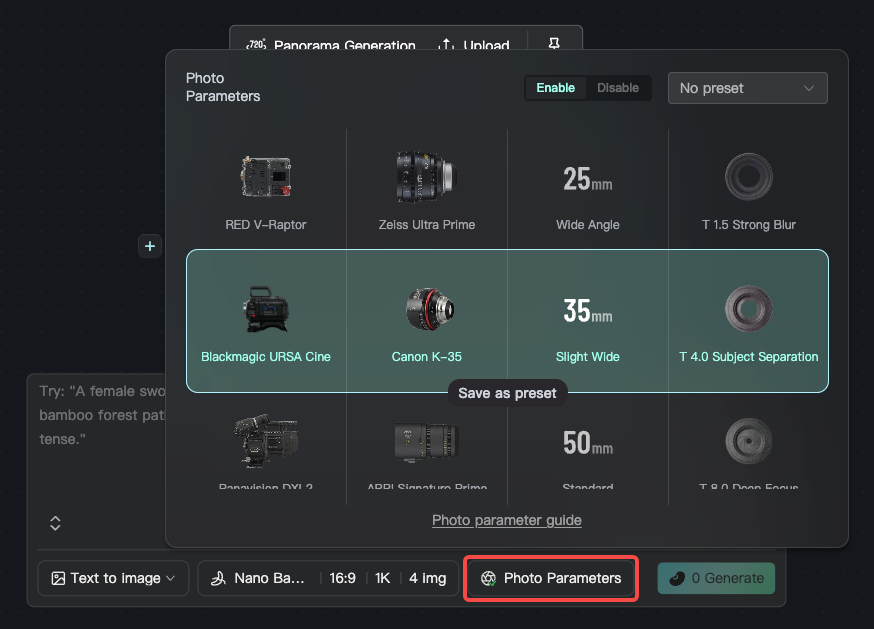
For focal length, depth of field, color science, and lens sets, see:
NadouPro Photo Parameters Guide
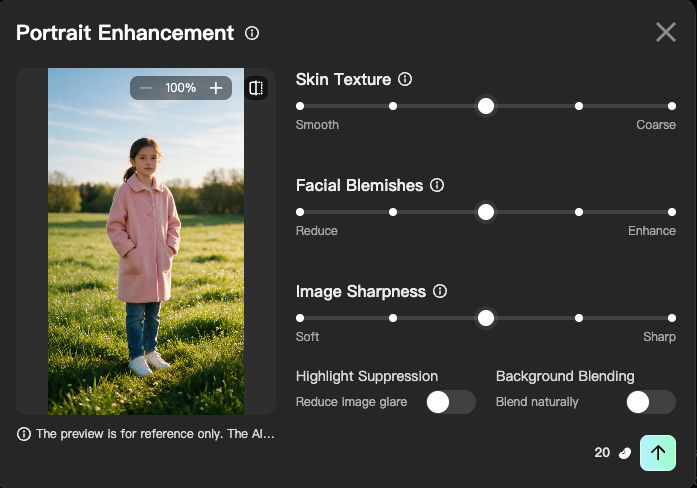
1.2.6 Portrait quality enhancement
Optimize people in an image, including finer skin texture, facial blemish repair, and sharper detail. Available only on Image (AI-generated / custom) nodes. Useful for making realistic portraits look more natural and refined.
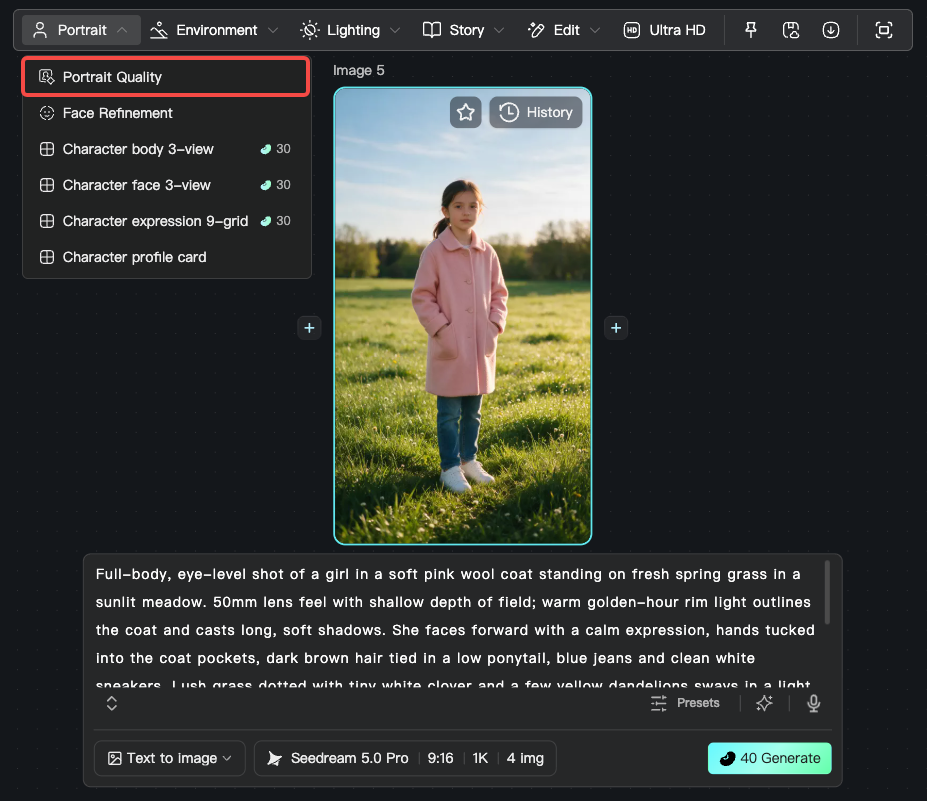
Adjustable parameters
Skin texture refinement: enhance micro skin texture so skin looks more natural
Facial blemish repair: detect and repair spots, acne marks, and similar blemishes
Sharpness boost: increase overall clarity and edge sharpness
Shine reduction: reduce oily highlights across the image
Background blend: blend the person more naturally into the background
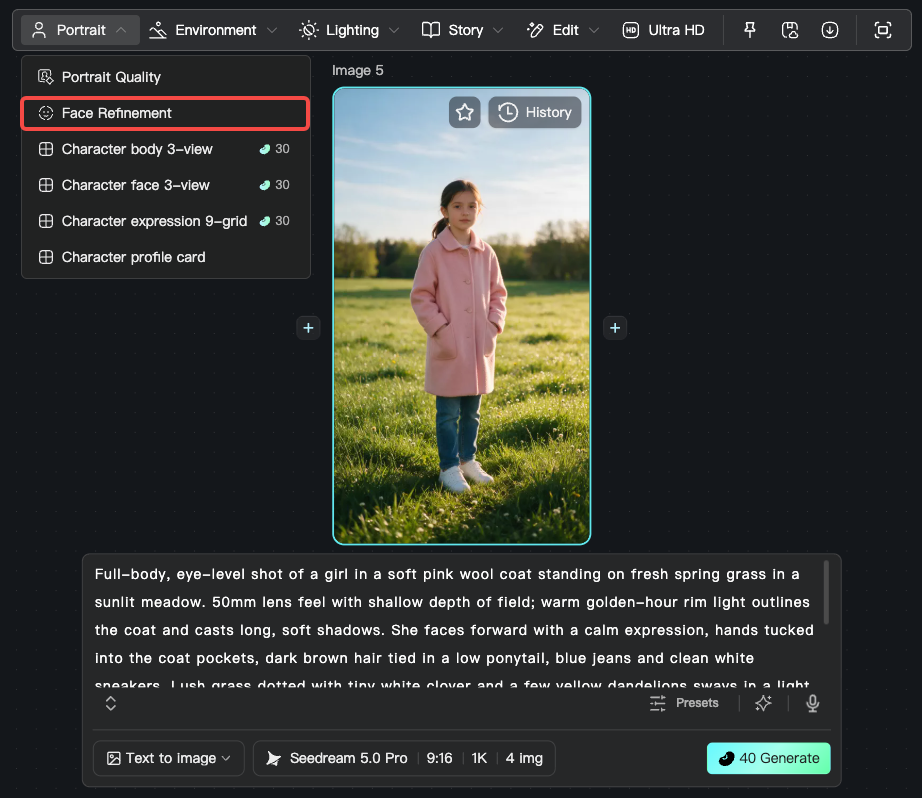
1.2.7 Face retouch
Fine-tune a character's face with instruction editing and parameter adjustments. Available only on Image (AI-generated / custom) nodes. Useful when you need precise control over facial features, expression, and makeup.
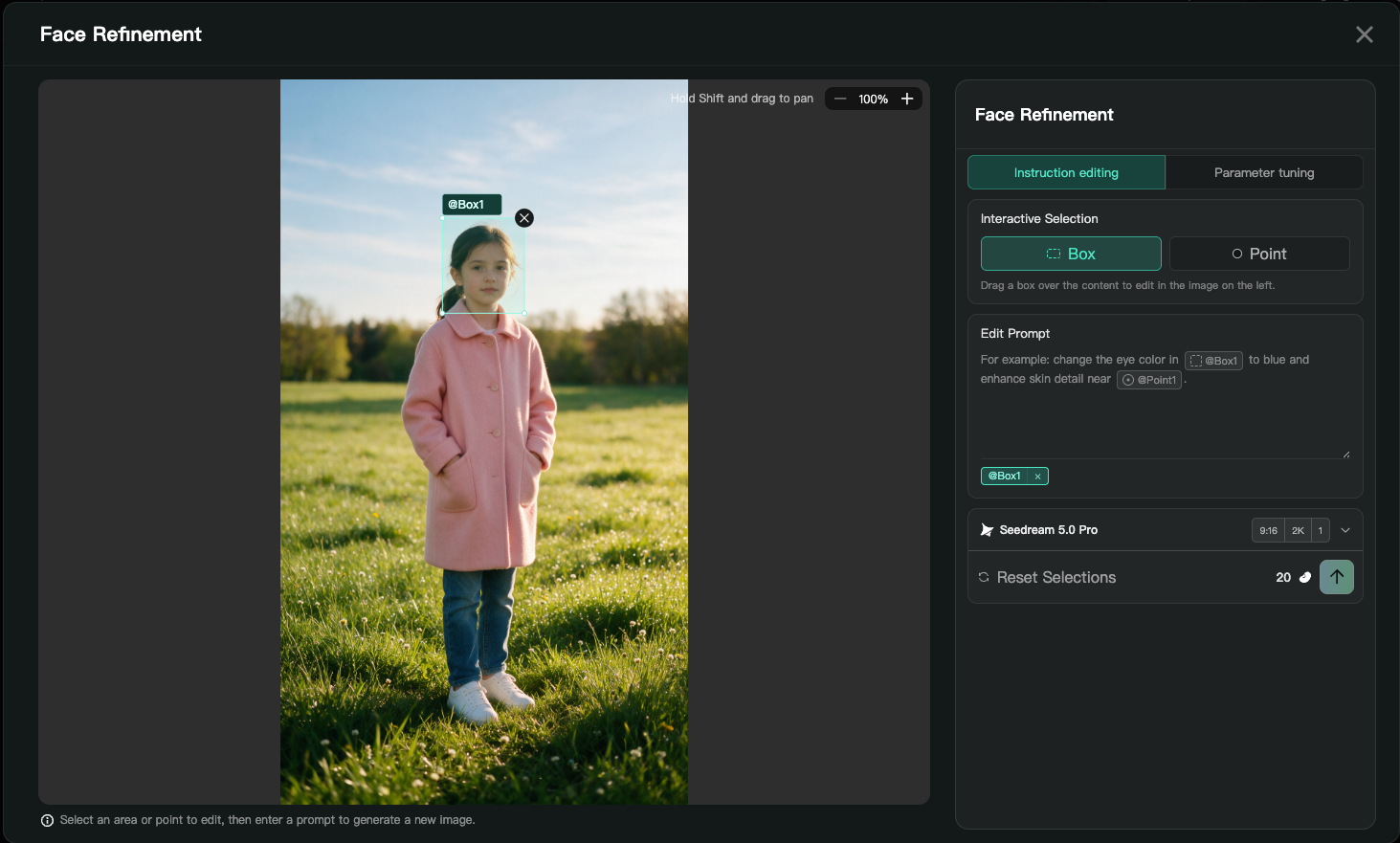
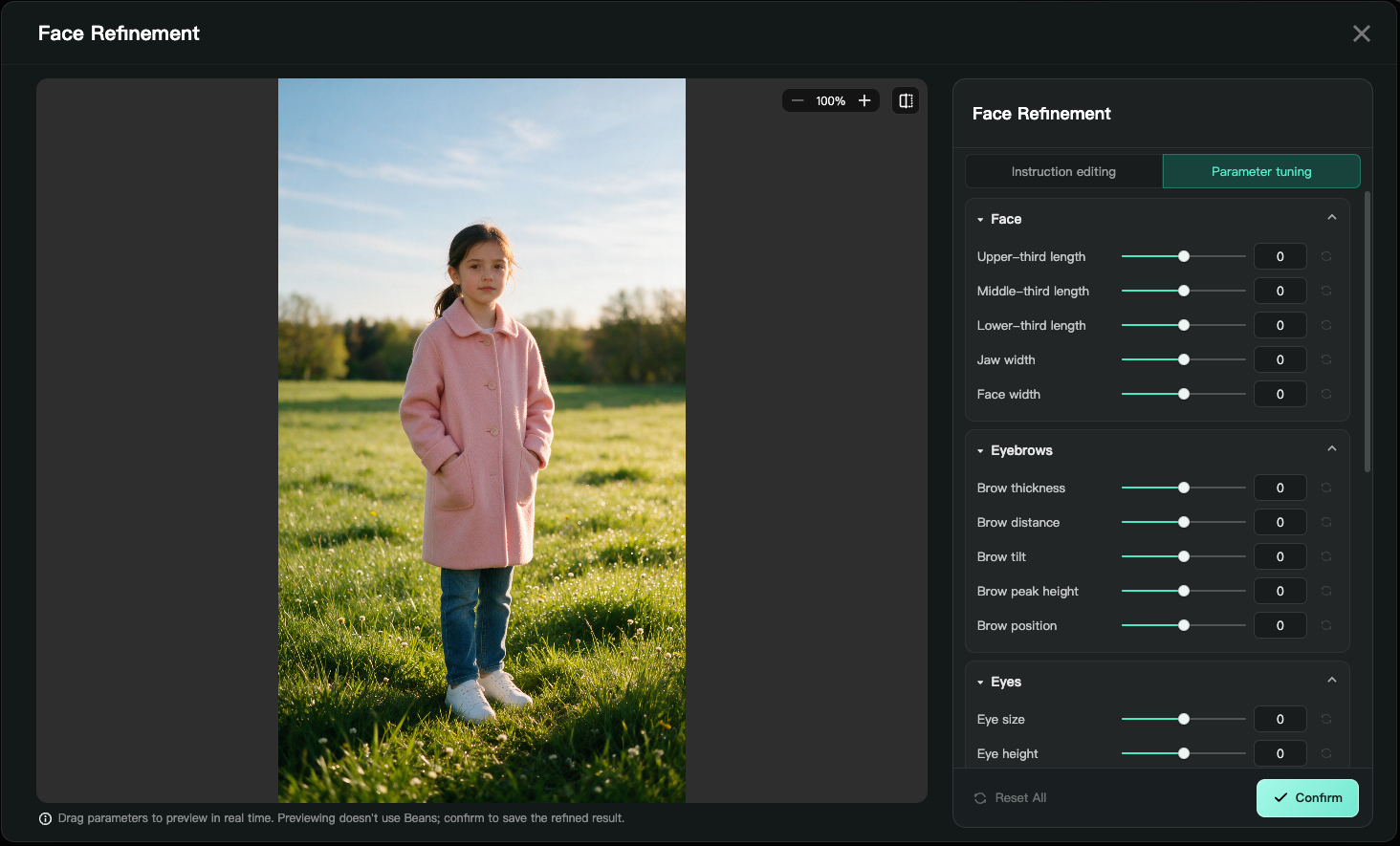
【Parameter fine-tuning】 can adjust the face, eyebrows, eyes, and other facial details.
2 What video generation features are available
NadouPro offers a full video generation and editing pipeline, from Text to Video through professional shot generation. After you add a Video node on Canvas or in Workbench, pick a mode in the feature panel. Generation modes include Text to Video, Start & End Frames, Multi-Reference, and Action Control. Editing includes Smart Erase and super-resolution frame interpolation. All video models support audio-visual sync.
Supported models: Seedance 2.5 (strong quality and volume, more refined footage), Seedance 2.0 (4K, high-quality multi-shot), Happy Horse 1.1 (stronger motion), Kling 3.0 Omni 4K (multimodal input), MiniMax H3 2K (multi-shot output, high value), Seedance 2.0 Mini (very fast output), Veo 3.1 Preview (4K ultra HD), Gemini Omni Flash (multimodal all-rounder)
For model details, see How to Choose NadouPro Models — Image, Video, and Audio 【Video Models】
2.1 Basic features
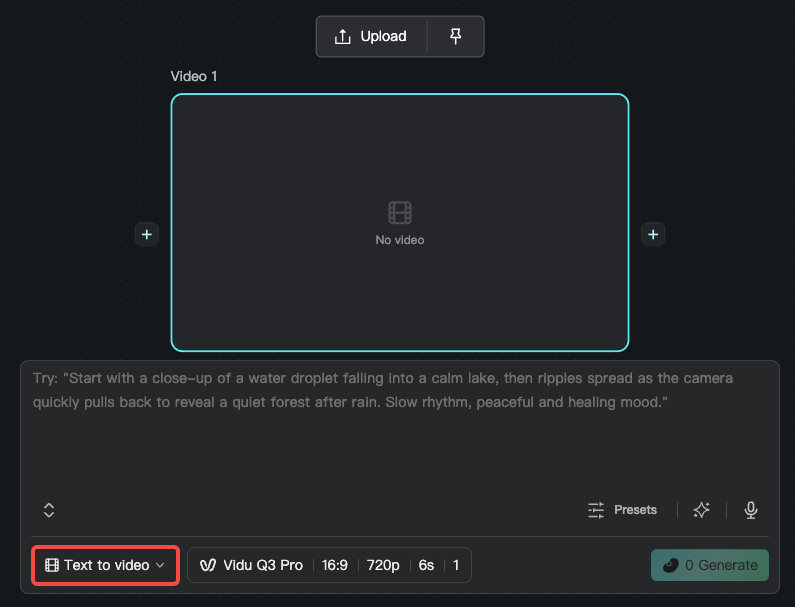
2.1.1 Text to Video
Enter a text description to generate a 1–15 second clip. This is the most basic video workflow, useful for quickly producing motion and testing a creative direction. In a Video node, choose "Text to Video", enter a prompt, and pick a model.
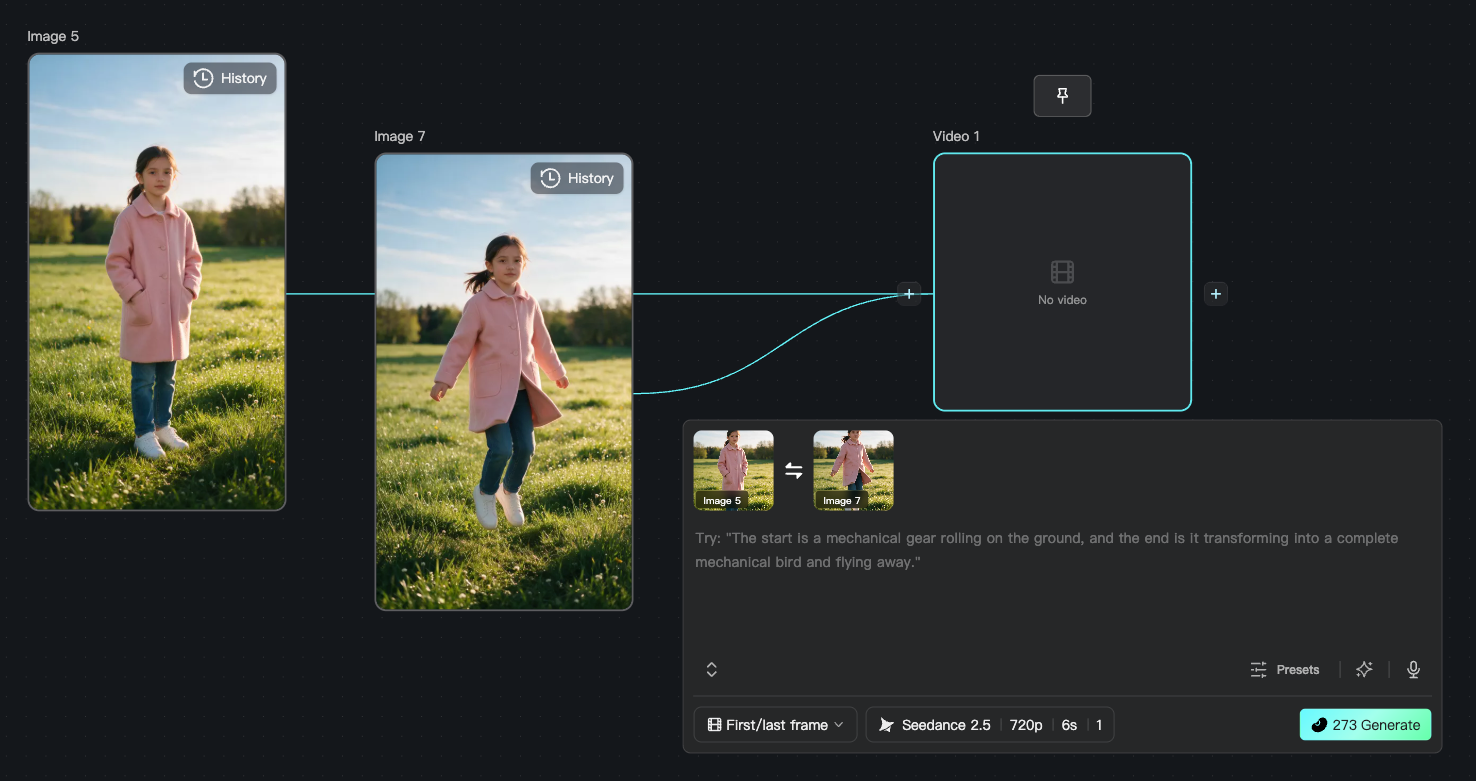
2.1.2 Start & End Frames
Control clip generation with a first-frame and last-frame image. Upload two images as the start and end of the video, and AI generates the transition between them. Useful for controlling the opening and closing frames and connecting shots. In a Video node, choose "Start & End Frames" and upload the first and last frames.
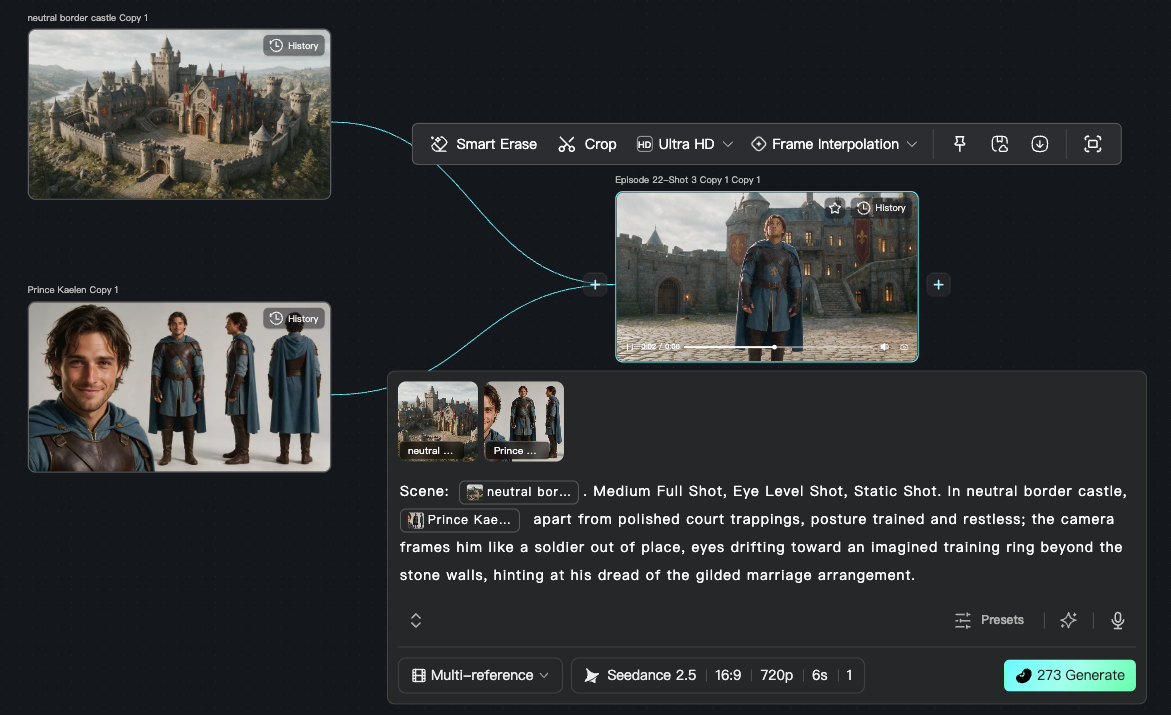
2.1.3 Multi-Reference
Fuse several subject or other reference images into a video clip. Useful when you need to keep multiple characters or scenes consistent. In a Video node, choose "Multi-Reference", upload reference images, and enter a description.
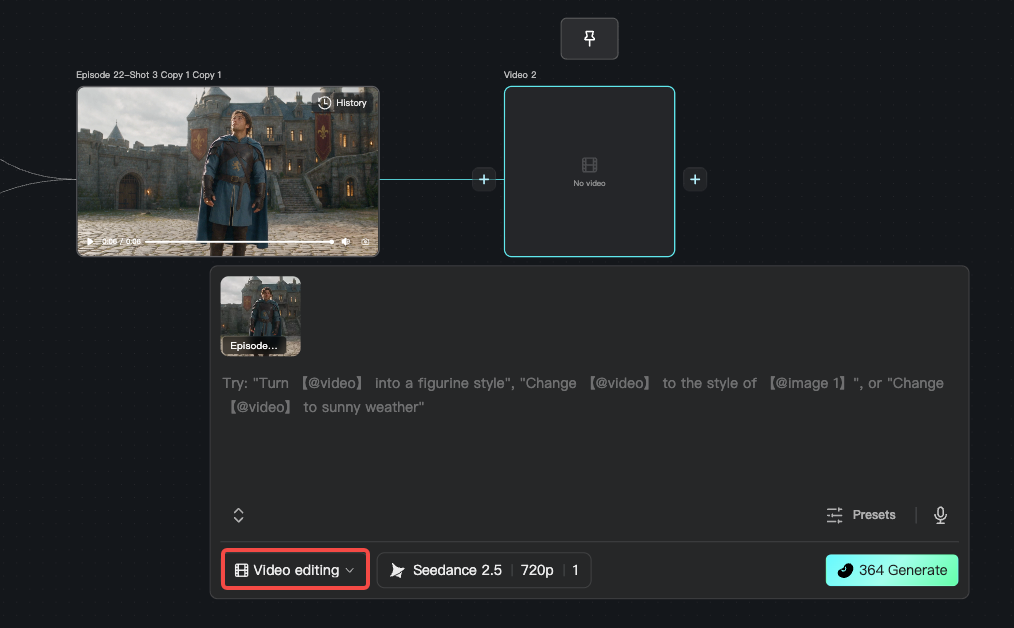
2.1.4 Video Editing
Edit elements in an existing video, including changing the mood and extending duration. Useful for local adjustments on a generated clip. In a Video node, choose "Video Editing", upload the target video, and enter an edit instruction.
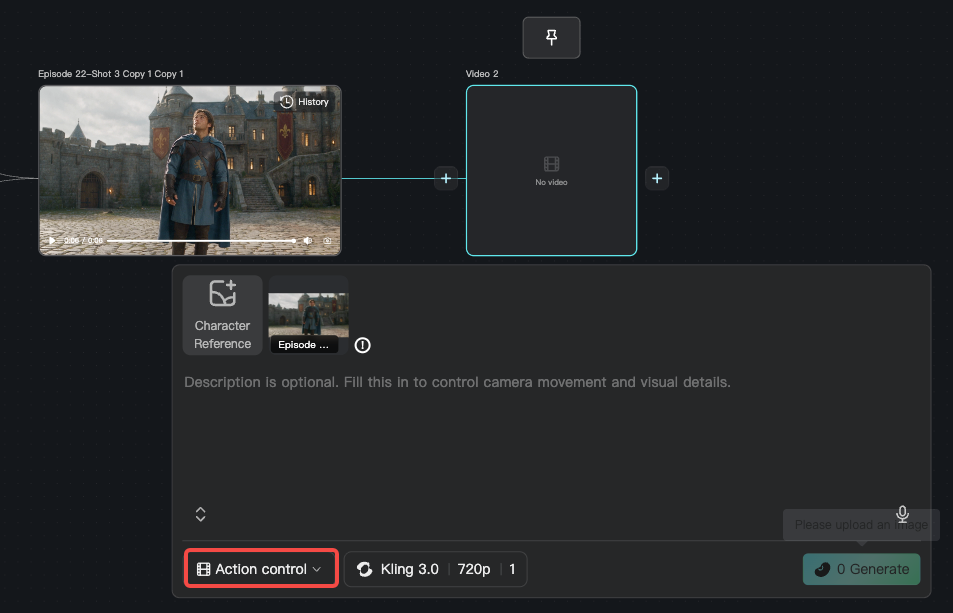
2.1.5 Action Control
Transfer facial expressions and body motion from a video onto the generated clip. Upload a reference video or character image, and AI extracts the motion and applies it to the target character. Useful when a character needs a specific action, such as walking, waving, or dancing.
2.2 Advanced features
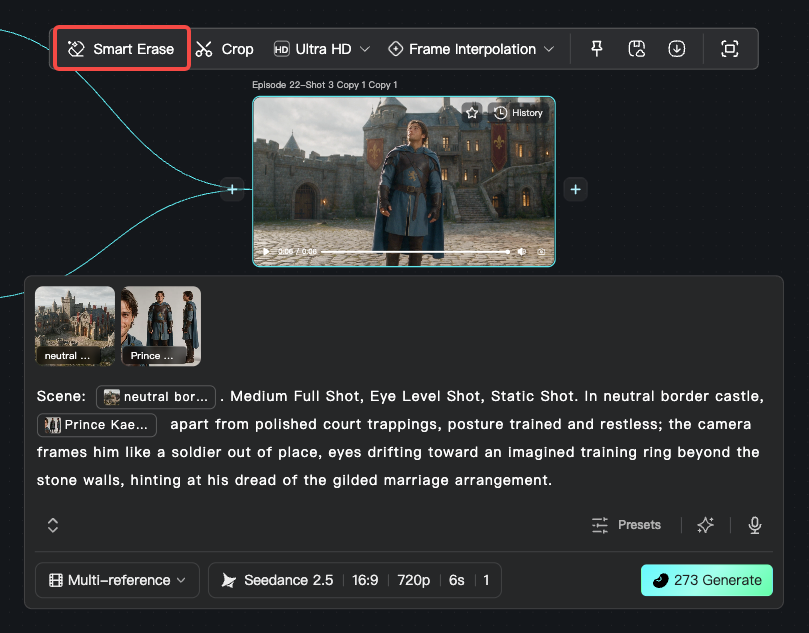
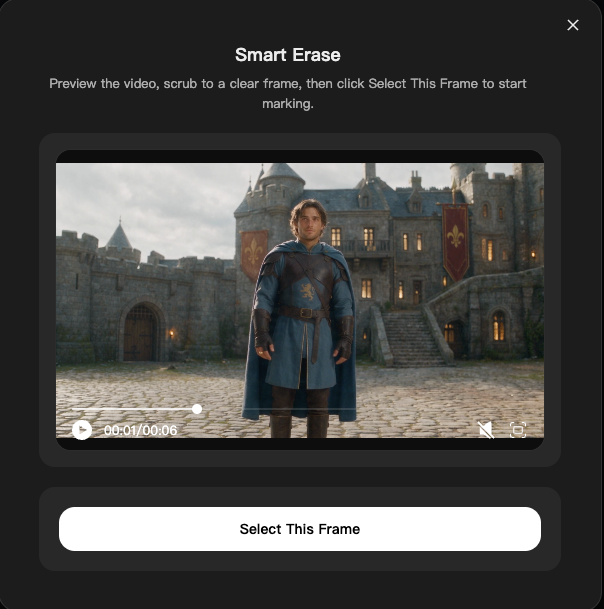
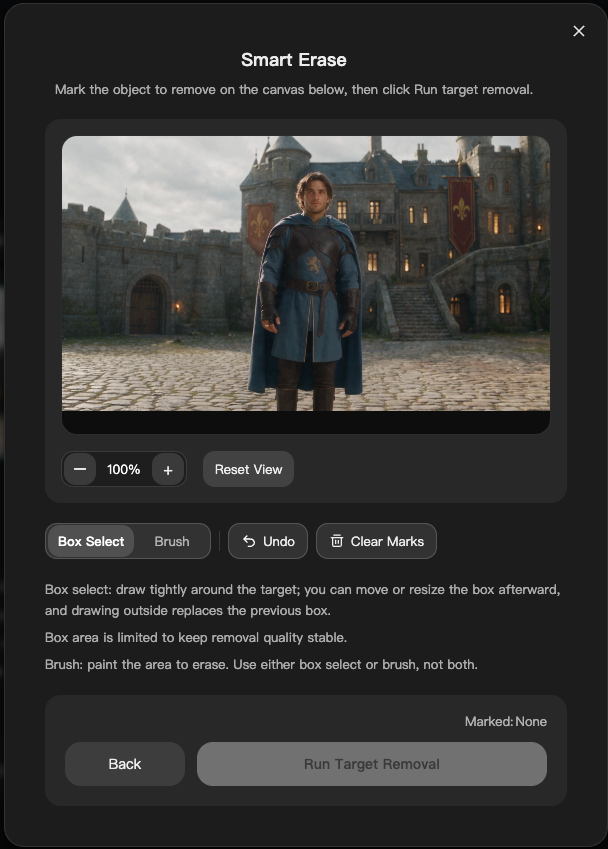
2.2.1 Smart Erase
Smart Erase removes unwanted elements or objects from a video. Useful for cleaning continuity errors, watermarks, or extra people. In a Video node, choose "Smart Erase" and box the area to remove.
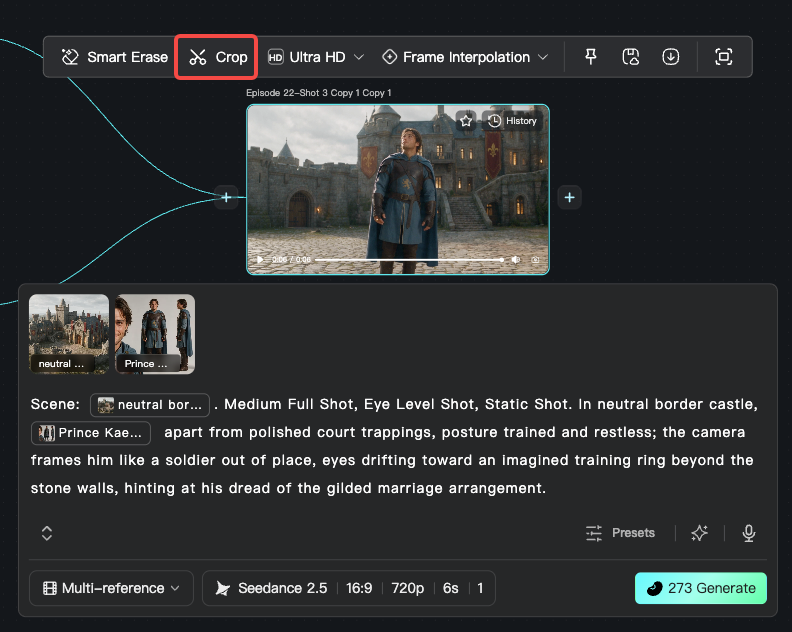
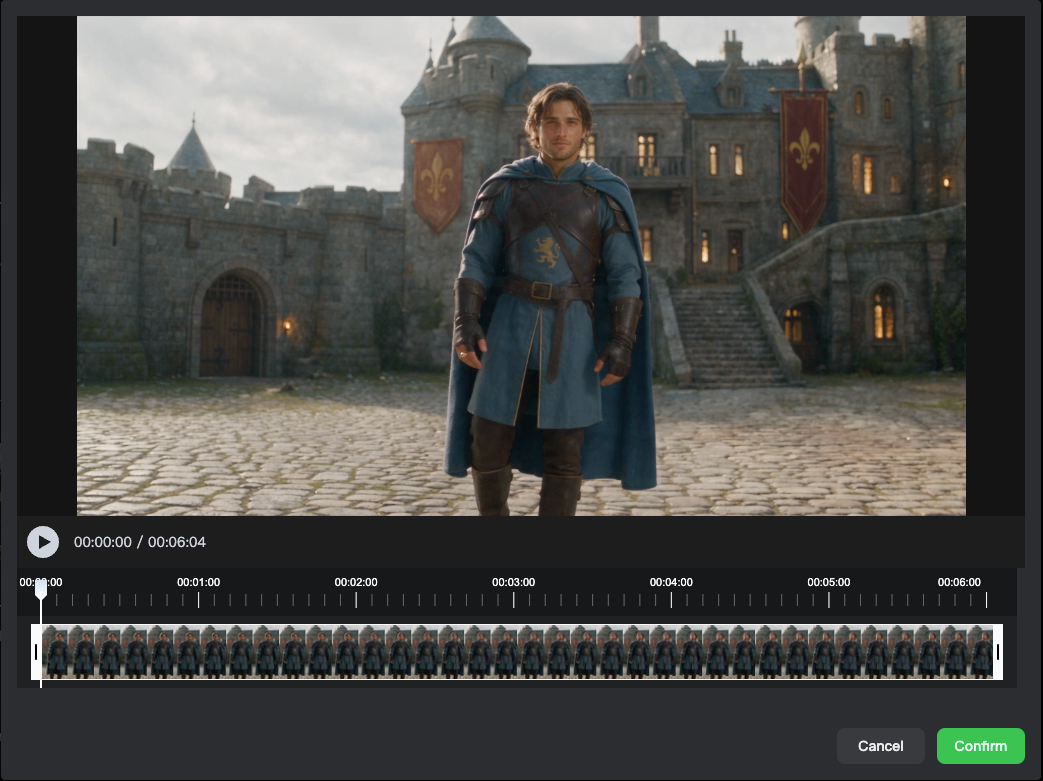
2.2.2 Crop
Trim the length of a video.
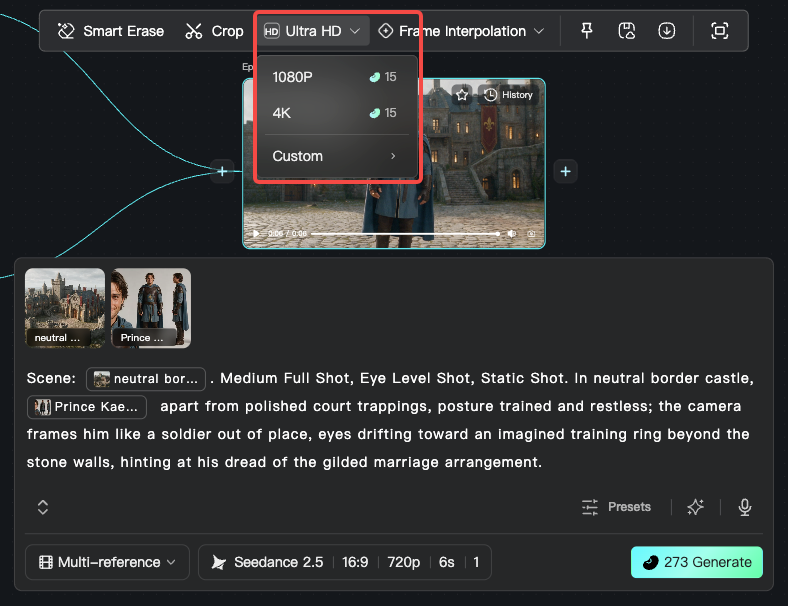
2.2.3 Ultra HD
Apply super-resolution to a video to increase clarity and detail. Useful for lifting low-resolution footage to HD.
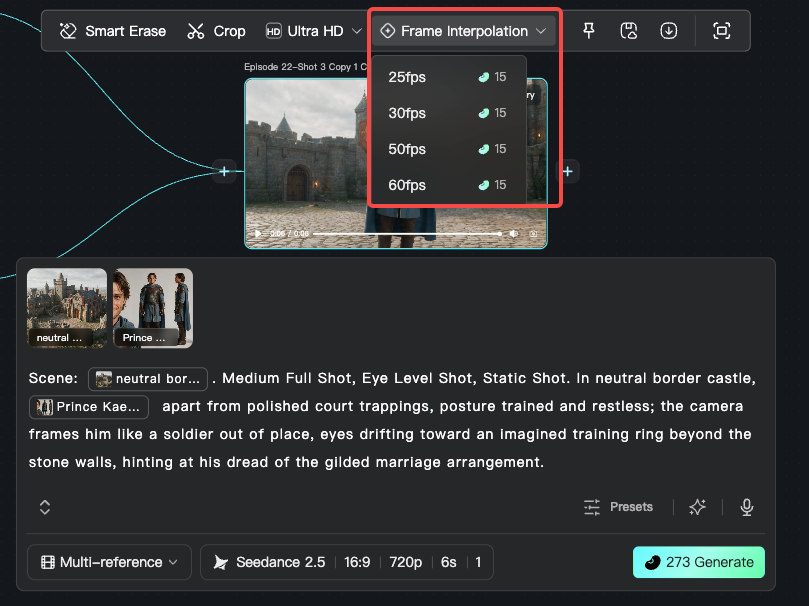
2.2.4 Super-resolution interpolation
Automatically apply super-resolution and frame interpolation to increase resolution and clarity. Useful for lifting low-resolution footage to HD or Ultra HD.
3 What audio features are available
NadouPro provides audio generation for voice-over and music. After you add an Audio node on Canvas or in Workbench, pick a mode in the feature panel. The four modes are Generate Song, Generate Accompaniment, Voice-over, and Voice Convert, covering scoring and character dubbing.
Supported models: Mureka V9 (understands creative intent and outputs a high-completion track), Mureka V8 (stronger melody and vocals, with a complete song structure), Nadou TTS (multilingual dialogue voice-over), Nadou VC (multilingual voice conversion)
For model details, see How to Choose NadouPro Models — Image, Video, and Audio 【Audio Models】
3.1 Music production
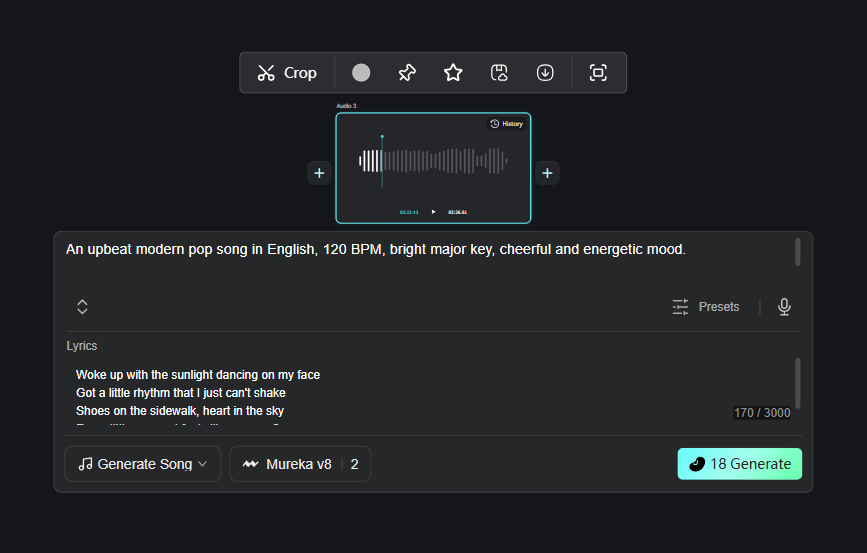
3.1.1 Generate Song
Describe style, mood, instruments, and lyrics to get a complete song.
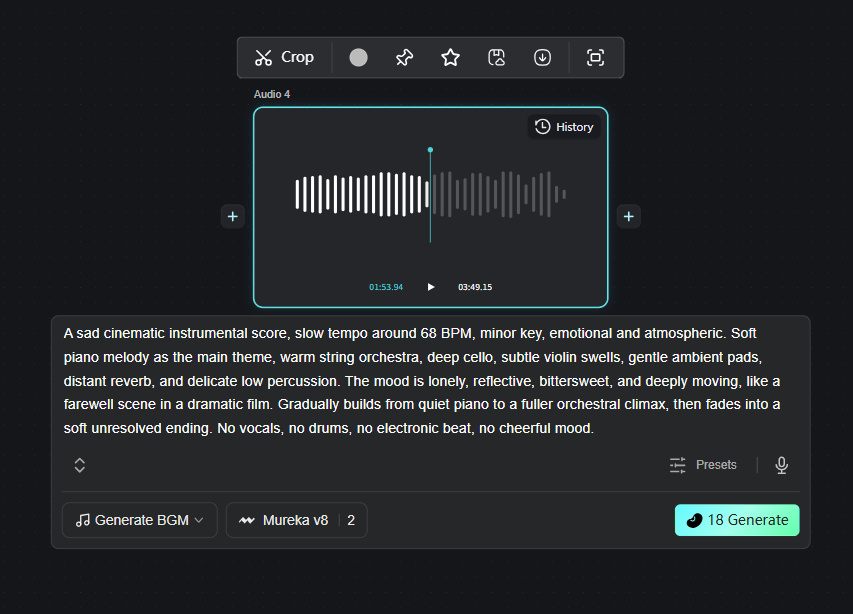
3.1.2 Generate Accompaniment
Describe style, mood, instruments, and related parameters, and AI generates a matching backing track.
3.2 Voice-over generation
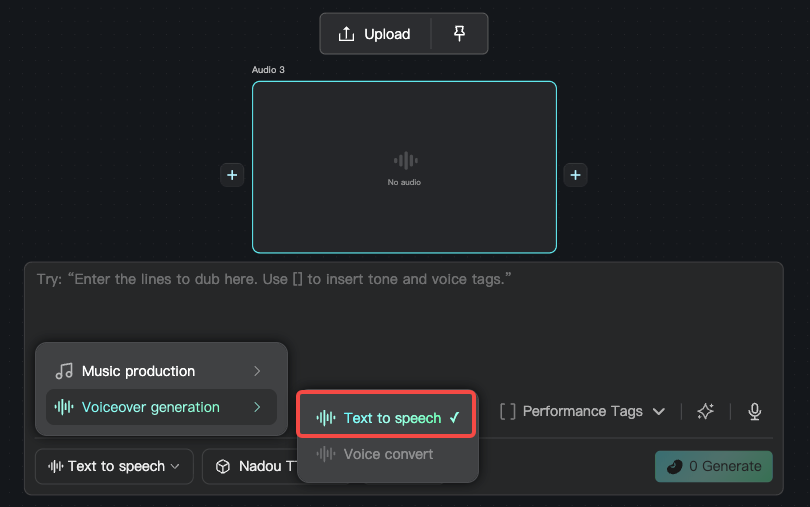
3.2.1 Voice-over
Enter character dialogue and AI generates expressive speech. You can choose different timbres and language styles, which is useful for adding character lines. In an Audio node, choose "Voice-over", enter the dialogue, and pick a timbre.
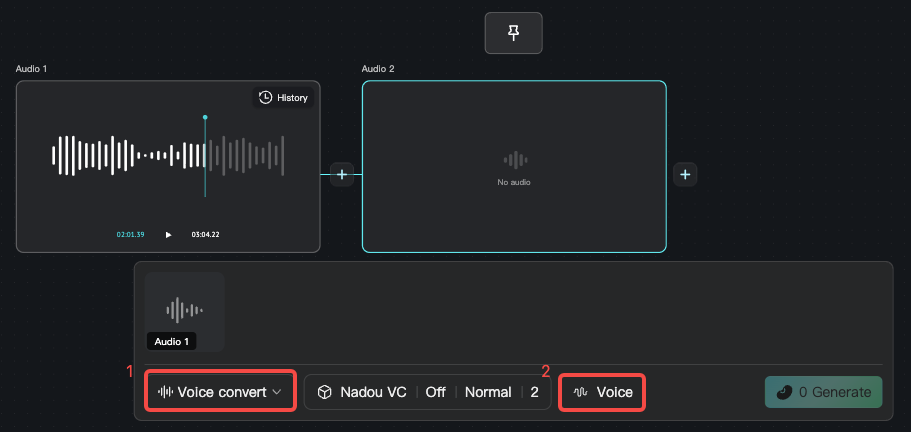
3.2.2 Voice Convert
Convert existing audio to a target timbre while keeping the spoken content and rhythm. Useful for replacing a voice-over with another character's voice.
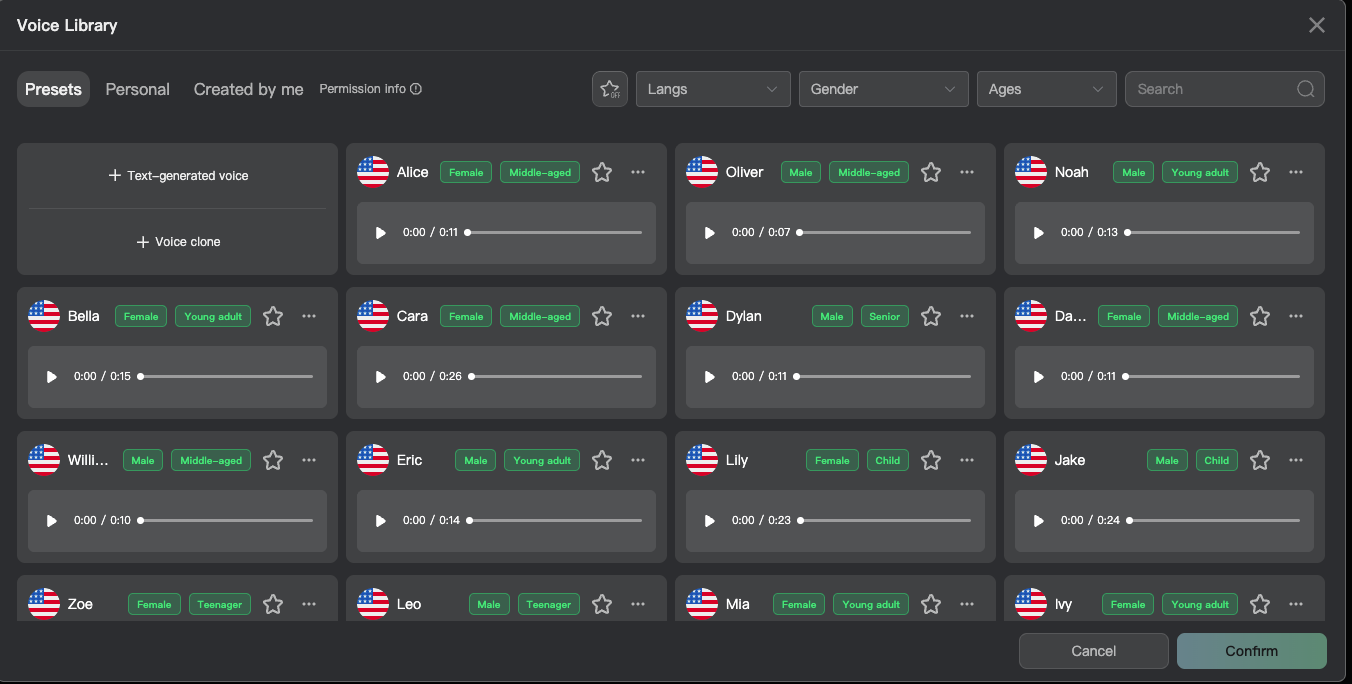
3.2.3 Text to Voice
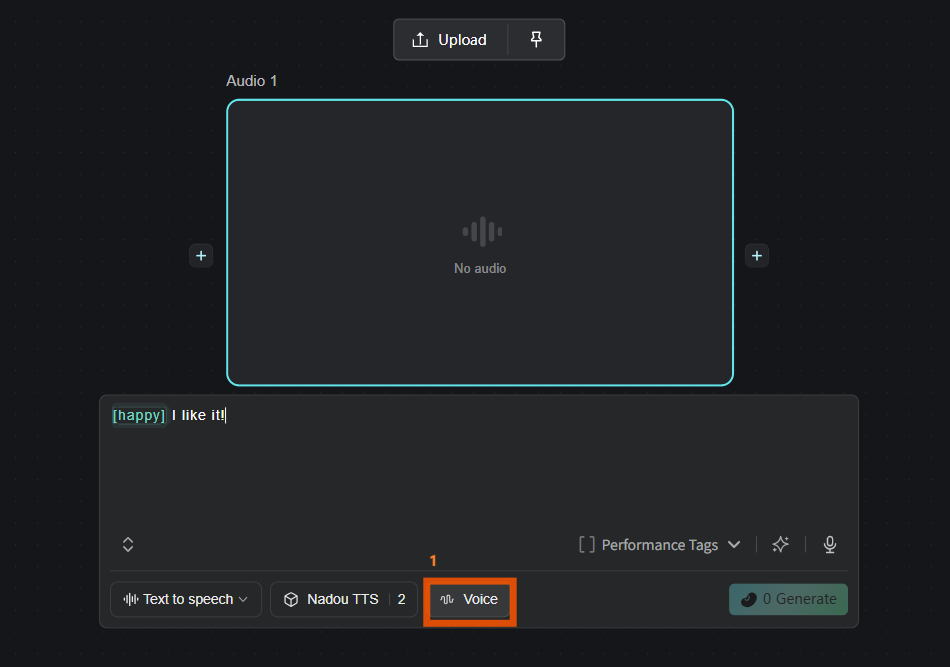
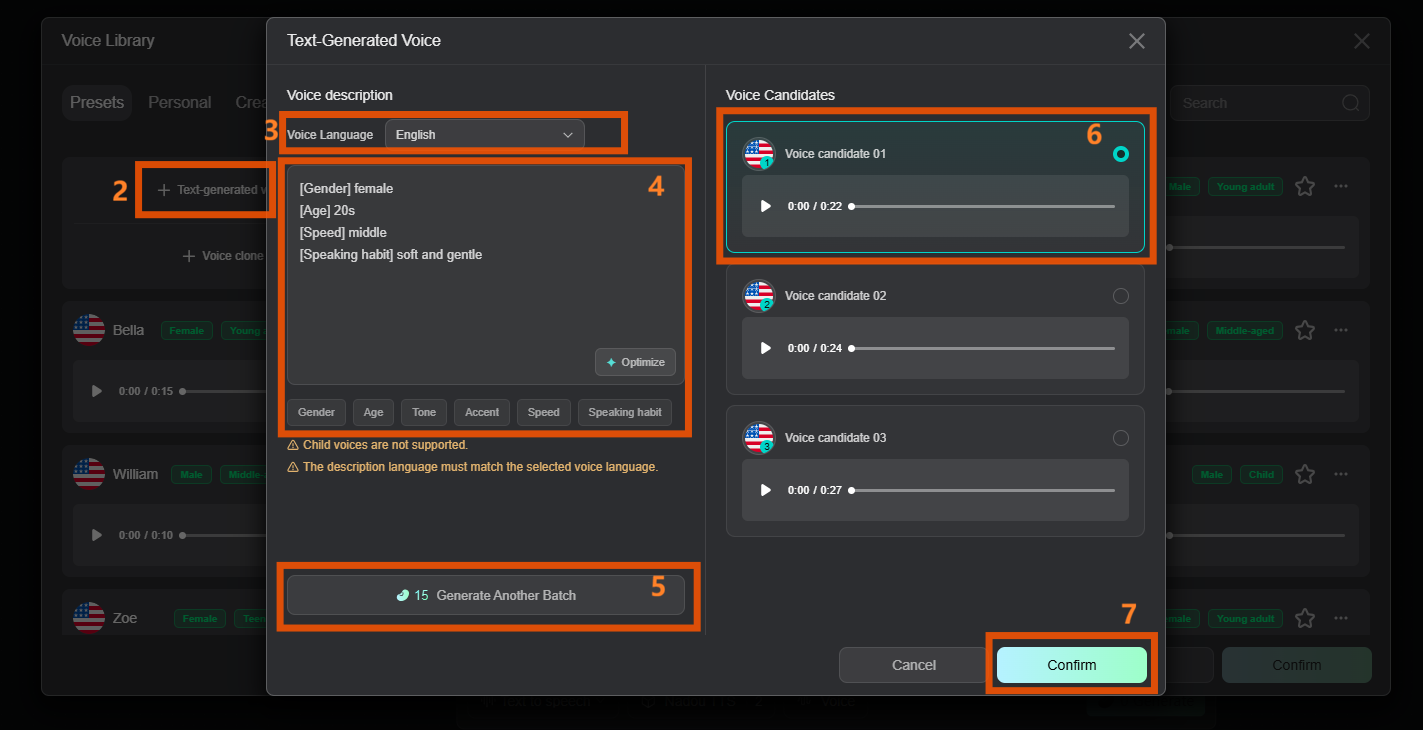
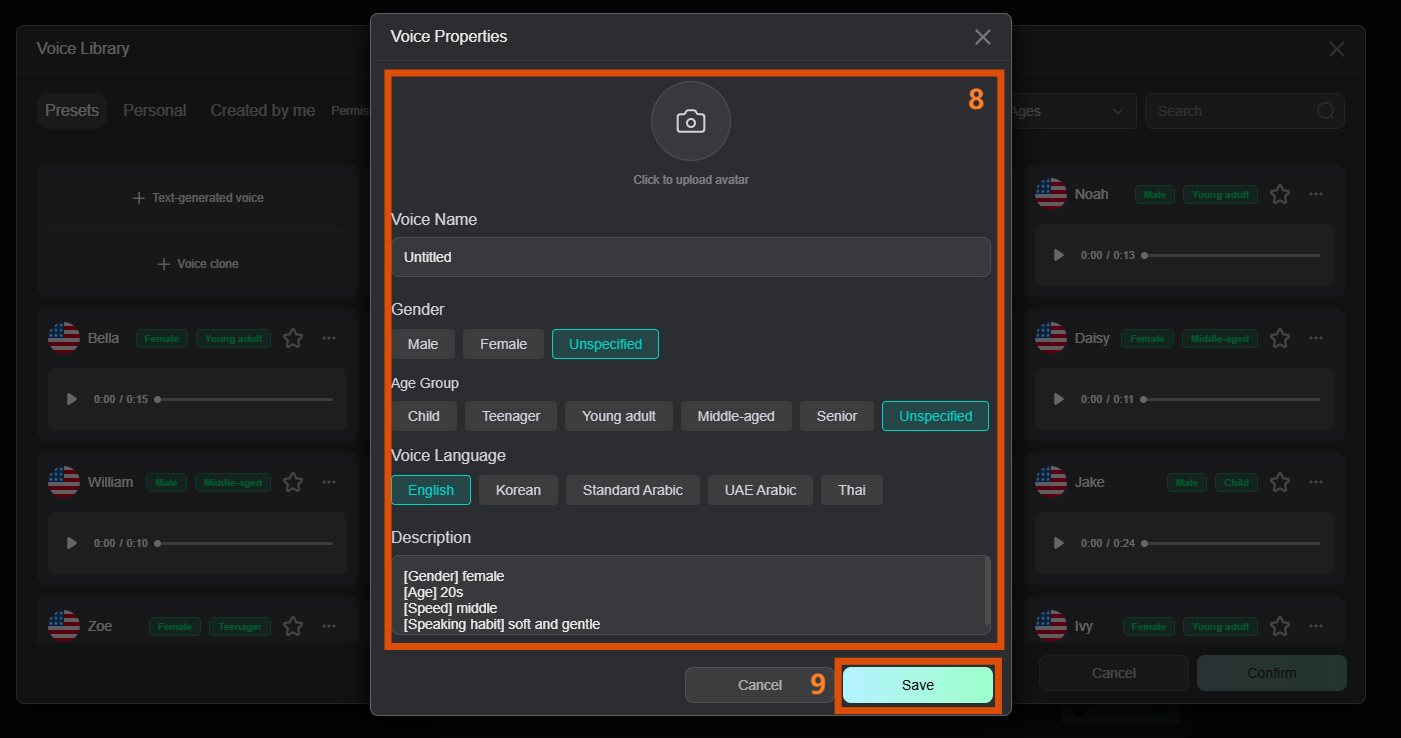
You can also create your own timbre for Voice-over and Voice Convert. Choose a language, then describe gender, age, speaking rate, and intonation in natural language to generate a custom voice.
4 FAQ
Q: How many Beans do image generation and video generation consume?
Different models and tasks consume different amounts of Beans. Image generation usually costs less, and video generation costs more. Always follow the cost shown on the product page.
Q: Which models support Photo Parameters?
In Text to Image or Image Reference, Photo Parameters are available when you choose Nano Banana 2, Nano Banana Pro, or GPT Image 2.
Q: Where can I use a generated panorama?
After generation, you can use it in 3D Director Stage for immersive spatial exploration and multi-camera blocking.
Q: Which creation modes does audio support?
Audio supports four modes: Generate Song, Generate Accompaniment, Voice-over, and Voice Convert, covering scoring and character dubbing.