
NadouPro User Guide
NadouPro is iQIYI’s professional AI-agent platform for film production, built around one-stop AI creation. It integrates nearly 30 leading models, including Seedance 2.0, Happy Horse 1.1, and Kling 4K, and supports the full pipeline from idea to script, storyboard, video, and audio, with high-resolution cinematic output. Nearly 70 agents covering screenwriters, directors, cinematographers, editors, and distribution span the whole creation chain. Together with iQIYI’s IP library and digital asset library, every creator can produce professional-grade film work efficiently.
This guide helps you master NadouPro’s core features from scratch.
📌 Who this is for: all NadouPro users—whether you are new, or a seasoned creator who wants advanced features. Product entry: https://www.nadou.ai
1 Quick start: your first work from scratch
The quick start helps you learn NadouPro’s core capabilities in the shortest time and finish your first AI film. It is for all new users.
1.1 Sign up and log in
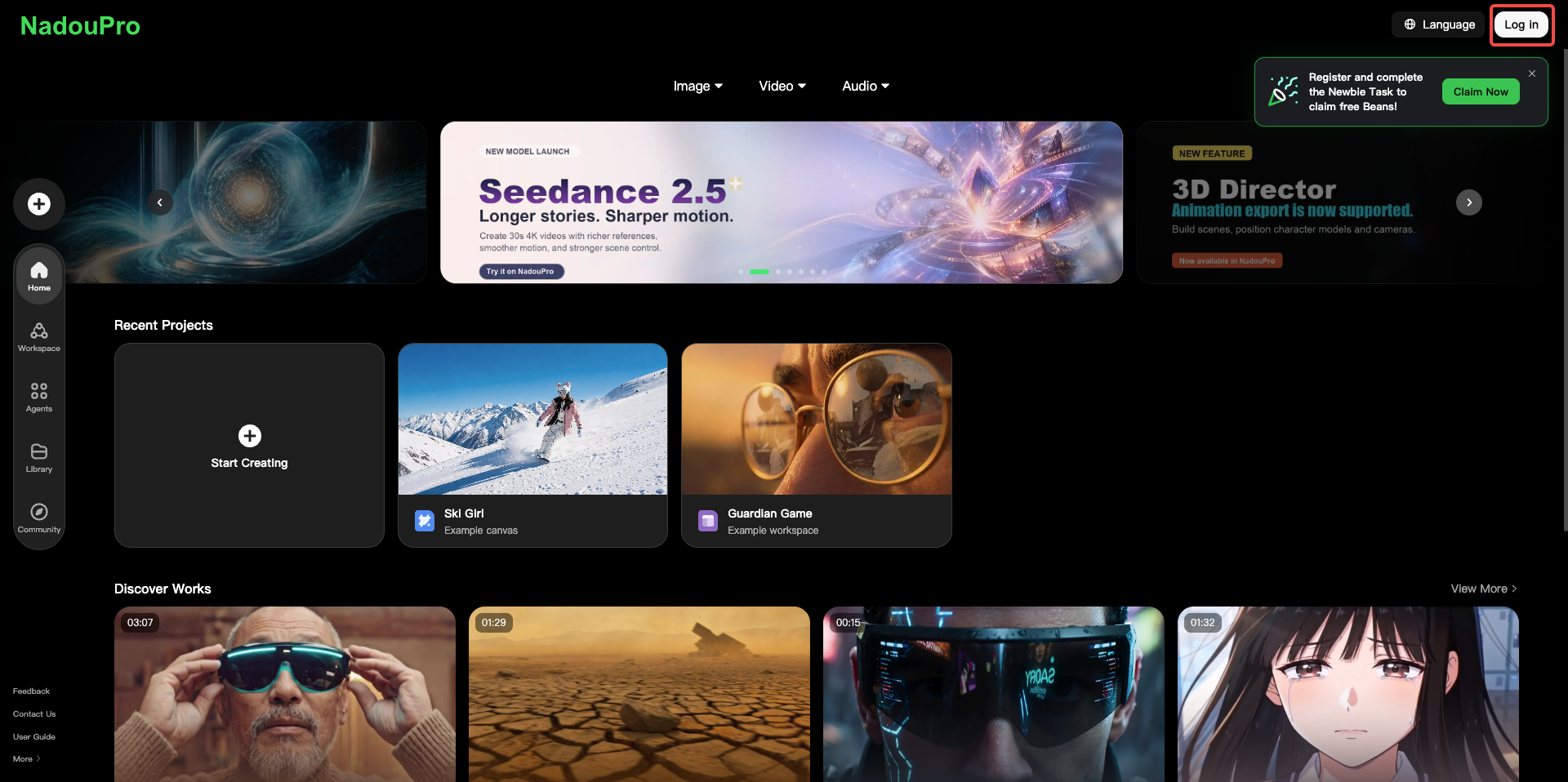
Visit https://www.nadou.ai and sign in with a phone number or email. First-time login grants starter Beans that you can use right away.
1.2 Two creation modes
NadouPro offers two core creation modes for different needs:
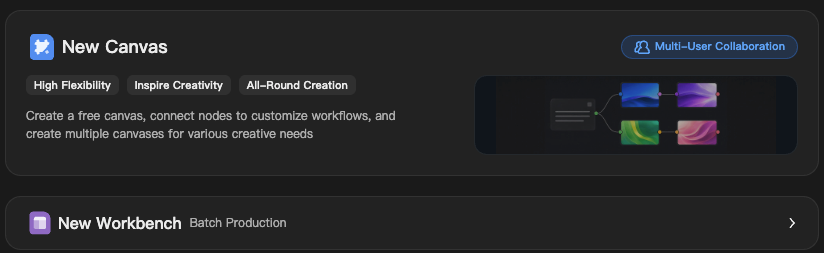
Canvas: an open creation space where you add nodes and drag connections. Best for exploring ideas and building flexible workflows. See How to Use Canvas?
Film-creation Workbench: a structured flow from script → subjects → storyboard → production. Best if you have a script and want to work step by step. See How to Use Workbench
2 Canvas guide
Canvas is NadouPro’s open AI creation space for exploring ideas. Add different feature nodes to combine text, images, video, audio, and other materials, and go from an idea to generated content in one flow.
3 Film-creation Workbench guide
The film-creation Workbench is NadouPro’s structured mode for users who have a script and need to move through production step by step: script → subjects → storyboard → production.
4 Capability guide: Skills and agents
The Capabilities section has three parts: the Skills market, Agents, and My Skills. 【Skills】 collects official and community skill packs across film creation, visual style, audio, and more. 【Agents】 cover the full film pipeline, including writing, directing, art, camera, editing, and distribution. 【My Skills】 is your space to manage, save, and create personal skill packs. Together they form the capability system that sets NadouPro apart from generic AI video tools.
How to use Skills and agents?
5 Assets guide
The Assets section brings together the IP library, digital asset library, and voice library, covering licensed stories, character materials, and voice-over timbres.
6 Image, video, and audio guide
NadouPro’s image, video, and audio tools form the core production stack for film creation. From character sheets and storyboard frames, to motion clips, then to scores and character voice-over, they cover the full visual and audio pipeline.
How to Generate AI Images, Videos, and Audio?
7 AI director methodology
This chapter does not teach buttons. It shares the thinking and methods that matter most in AI filmmaking, so your work can move from “usable” to “professional.”
NadouPro Creator Handbook: How to Become an AI Director
8 Team collaboration and scaled creation
NadouPro provides workspaces, online collaboration, permission management, and a project progress board so individuals and teams can manage materials and create together.
10.1 Team collaboration
- In the upper-right corner, open 【Personal】 and click 【Creation team】 to share assets online
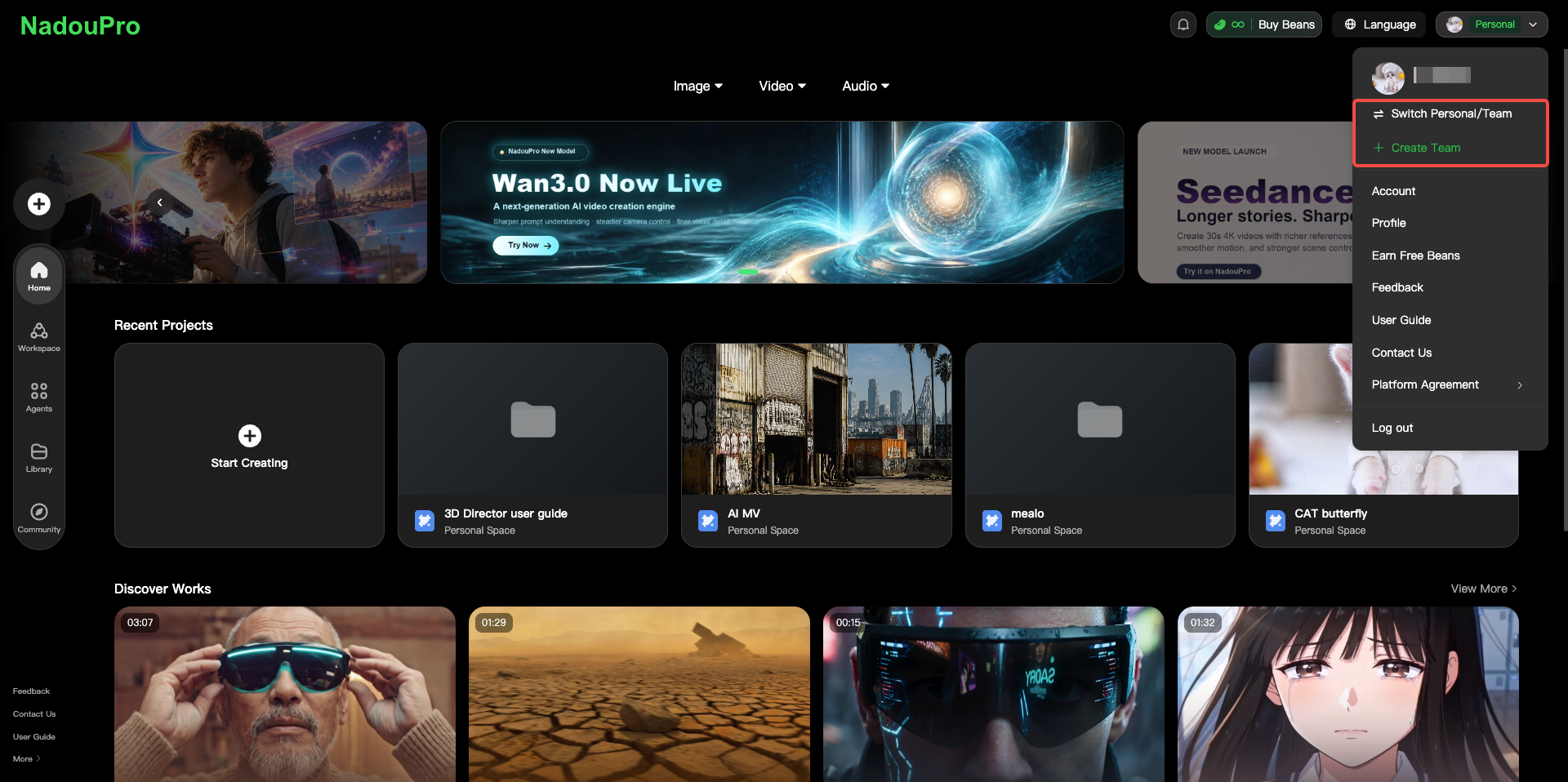
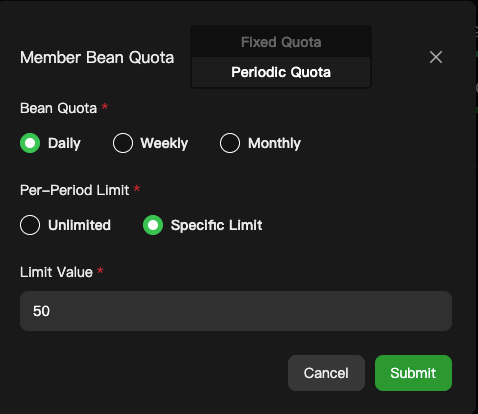
- Switch to the team space from the upper-right corner. Click 【Settings】 to view team info, add members, and allocate team Beans
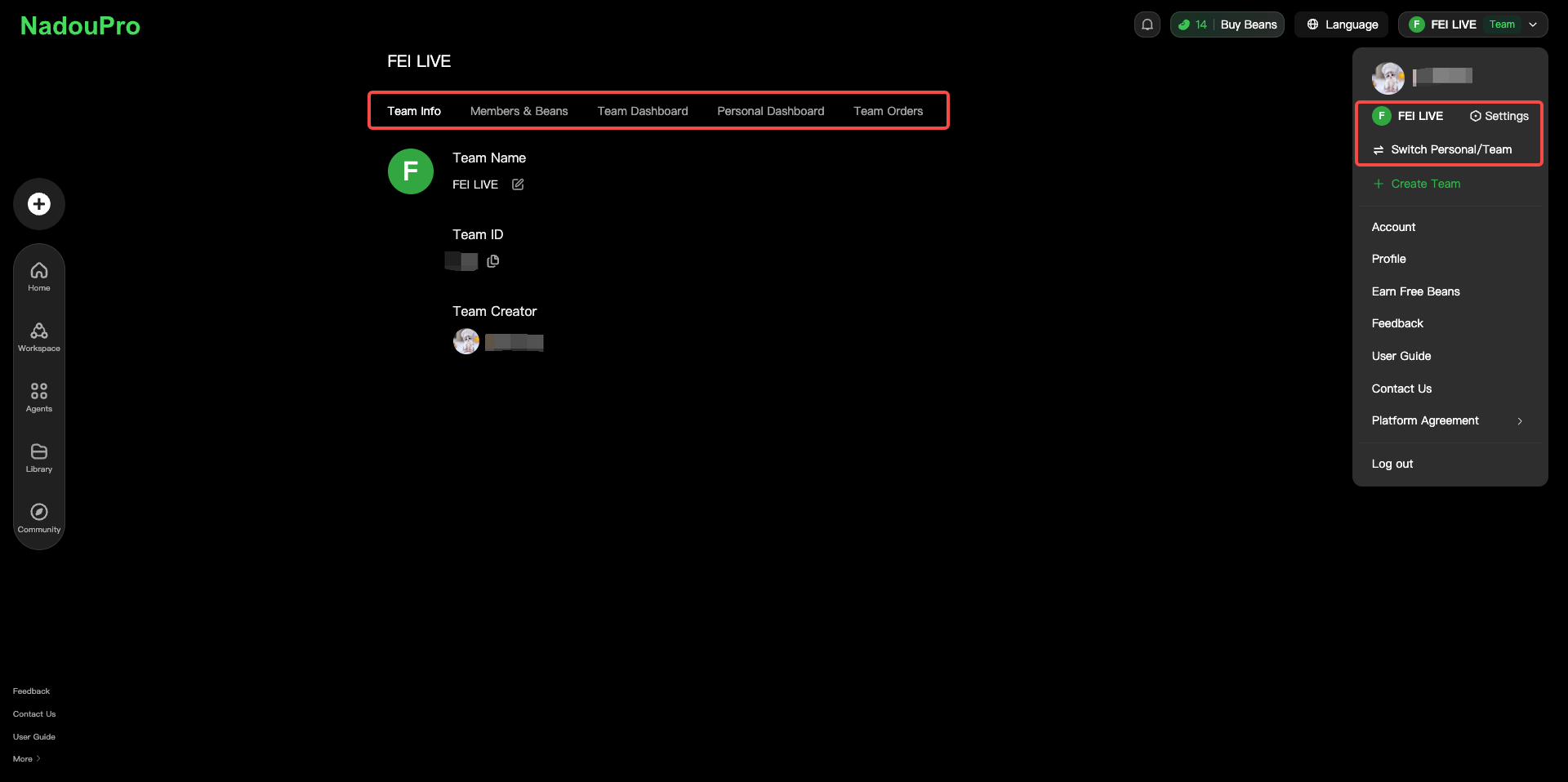
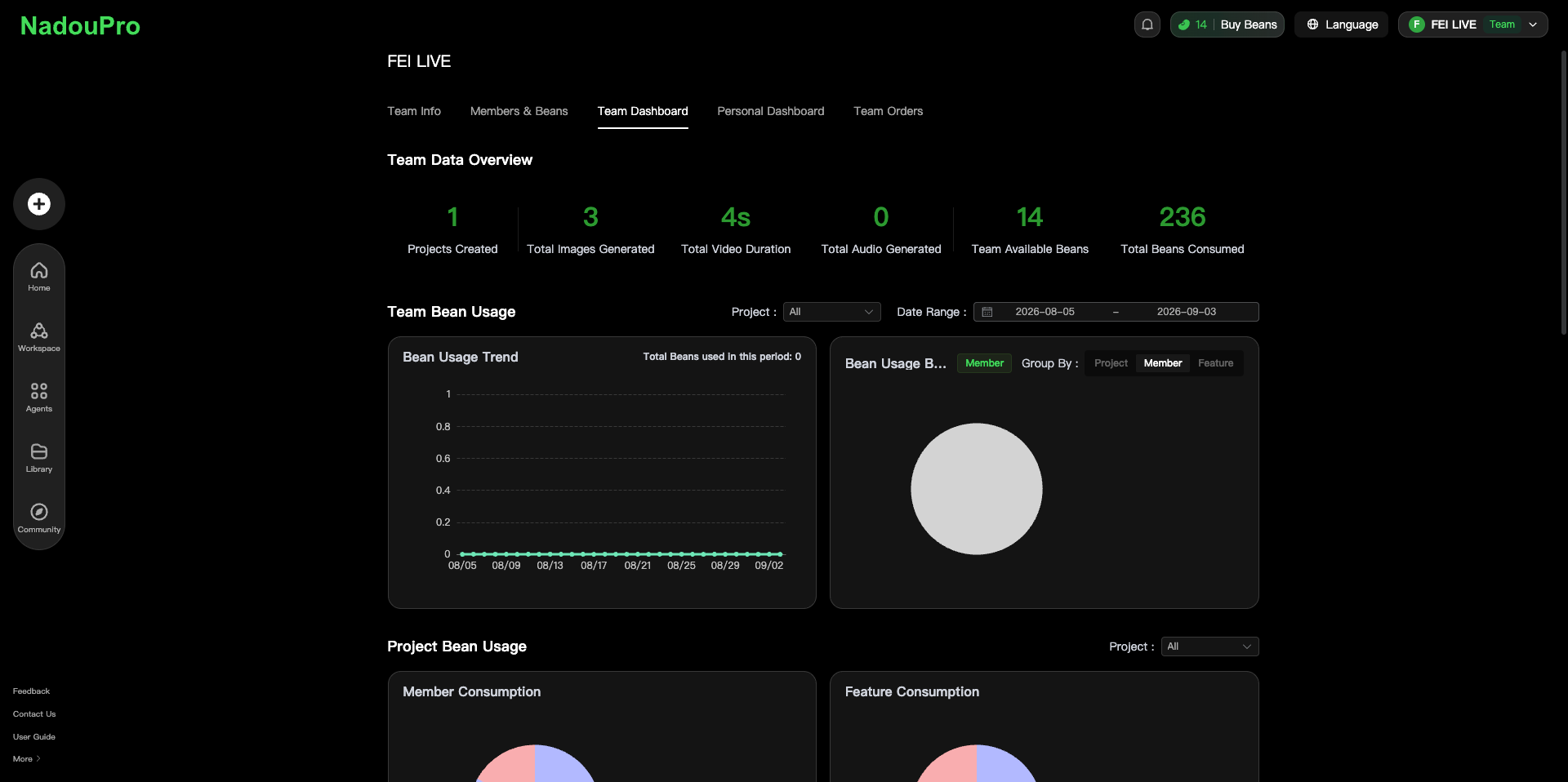
- The team panel shows team data and member usage
- Create a team project, then a Workbench or Canvas
- Multiple people can collaborate in real time and hand off assets seamlessly
10.2 CLI and automated batch creation
NadouPro CLI connects your local terminal to the web creation platform. You can call image, video, text generation, and Canvas with natural-language instructions. It fits pipeline production, third-party tool workflows, and large-batch automated generation.
Main capabilities:
Batch image, text, and video generation: output large amounts of material at once, such as series content or batch storyboard stills
Auto-build Canvas: create a canvas, add nodes, and set parameters from the command line to build a production pipeline quickly
One-click asset filing: generation results save to personal or team space, without manual download and upload
For full install steps, feature details, parameters, and troubleshooting, see the official docs: NadouPro CLI User Guide and NadouPro CLI Skill Guide.
11 Creator community and events
The NadouPro creator community is where AI filmmakers exchange ideas, learn, and show work.
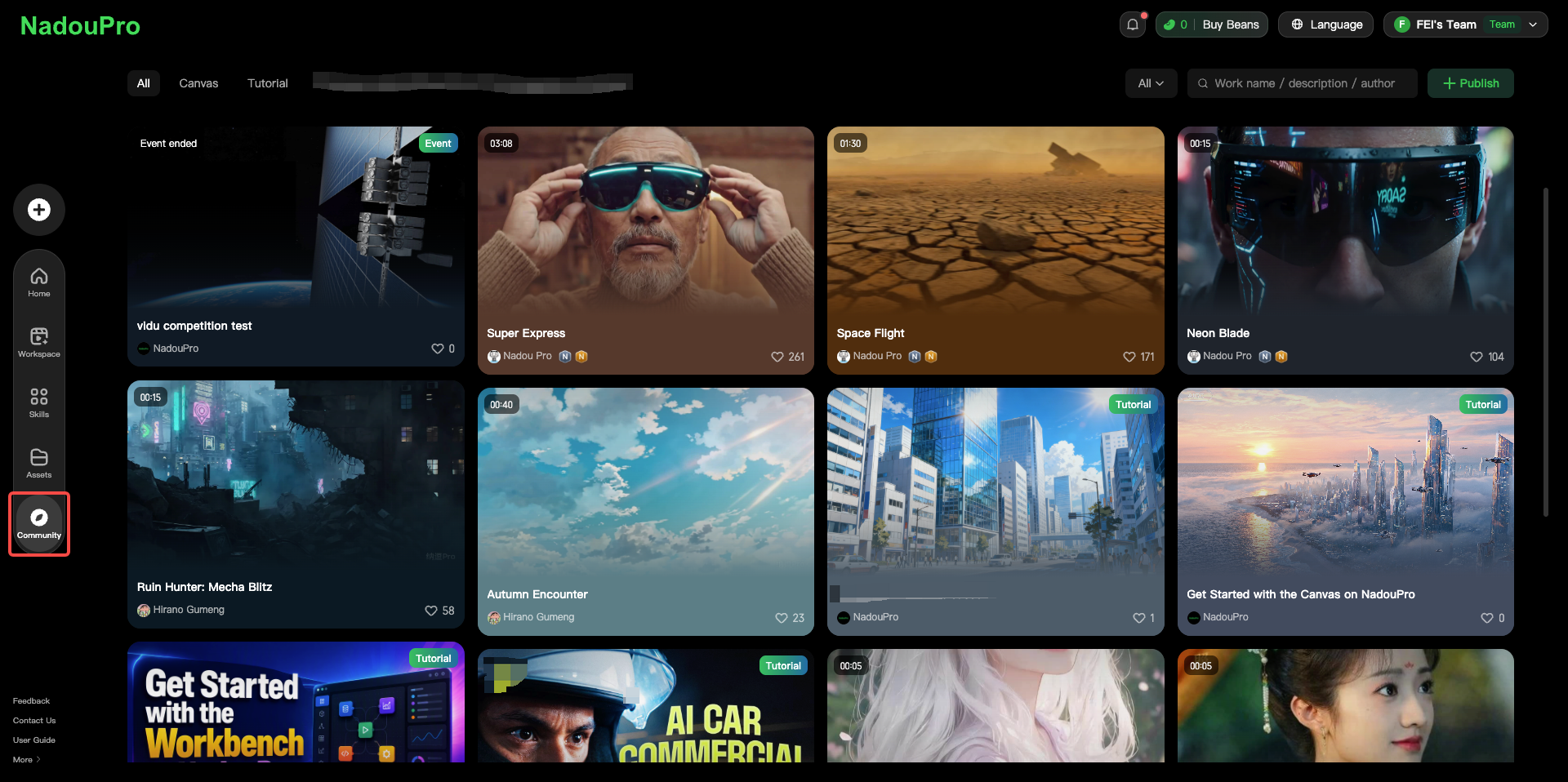
11.1 Browse and learn
In the community you can:
Browse other creators’ work
Learn techniques and prompt writing
Follow the latest models and feature updates
11.2 Publish work
After creation, publish the work or canvas to the community, or post a long article about the making-of to get feedback.
11.3 Join creation events
NadouPro regularly hosts events and contests. Joining can earn Beans rewards and extra exposure.
12 Model cheat sheet
This chapter compares all models available in NadouPro so you can quickly pick the one that best fits your current task.
How to Choose NadouPro Models — Image, Video, and Audio
13 FAQ
Common questions while using NadouPro, grouped by topic.
Sign-up and login
Q: How do I register for NadouPro? Visit https://www.nadou.ai and sign in with a phone number or email.
Beans and compute
Q: Are Beans refunded if generation fails?
Yes. If a task fails, Beans are returned in full along the original path.
Q: Do different models consume the same amount of Beans?
No. Cost varies by task type, complexity, and model. Always follow the amount shown on the product page.
Q: How does NadouPro’s Beans system work?
Beans can be exchanged for compute, generation quota, HD quality, IP material use, and more. You can get Beans by top-up, events, and other methods recognized by the platform.
For more Beans rules, see:
Visual consistency
Q: Why does a character look different across shots?
AI generation has some randomness. Use Image Reference, upload reference images, and create three-view character assets to keep the look consistent.
Export and download
Q: Which export formats are supported?
Images support PNG/JPG, video supports MP4, and audio supports common formats. Follow the export options on the product.
Q: Can I batch download?
Yes. On Canvas, box-select the assets to export and click 【Batch download】.
Team collaboration
Q: Does NadouPro support multi-person collaboration?
Yes. Canvas collaboration supports up to 100 people online at the same time.
Q: Do team members share Beans?
Compute in the team space is consumed together. Admins can view each member’s usage on the data board.
Q: How do I share a Canvas or Workbench with others?
Click Share on the Canvas or Workbench, add collaborators, and set permissions.
📌 This guide is updated continuously. Questions or suggestions are welcome in the community.
Product entry: https://www.nadou.ai/