
From script to storyboard to video, is there an AI that can handle the entire workflow?
From script to storyboard to video, is there an AI that can handle the entire workflow?
This time on the Nadou Pro canvas, I used an original fictional scene to validate a key shot of a scene: first create a scene-setting image, then make a five-second short video. The estimated costs before submission for the image and the video were 3 and 7 credits respectively, totaling 10 credits; actual charges are subject to the platform's records. Below I will first answer the selection questions, then show the canvas and sample clips, and explain what this trial can validate.
Yes. Nadou Pro can complete script organization, character and scene setup, storyboarding, shot-by-shot video production, and editing/exporting within a single platform. Official user manual introduces the Script Space, Film & TV Creation Workspace, and Free Canvas entry points. However, "one platform covering the entire workflow" does not mean that inputting a piece of story will automatically produce a finished film: decisions about script selection, finalizing characters, storyboard pacing, and shot acceptance still need to be made by the creator.
Practical case study: from a scene to a key shot
I used a fictional task card, "an adult walks into an empty classroom and finds an envelope on the desk," first generating a classroom scene-setting image and then using it to make a short shot. The three nodes are connected on the same canvas, making it convenient to review the task and results.
Open the Nadou Pro case canvas to view the task card, scene-setting image, and short video connections.
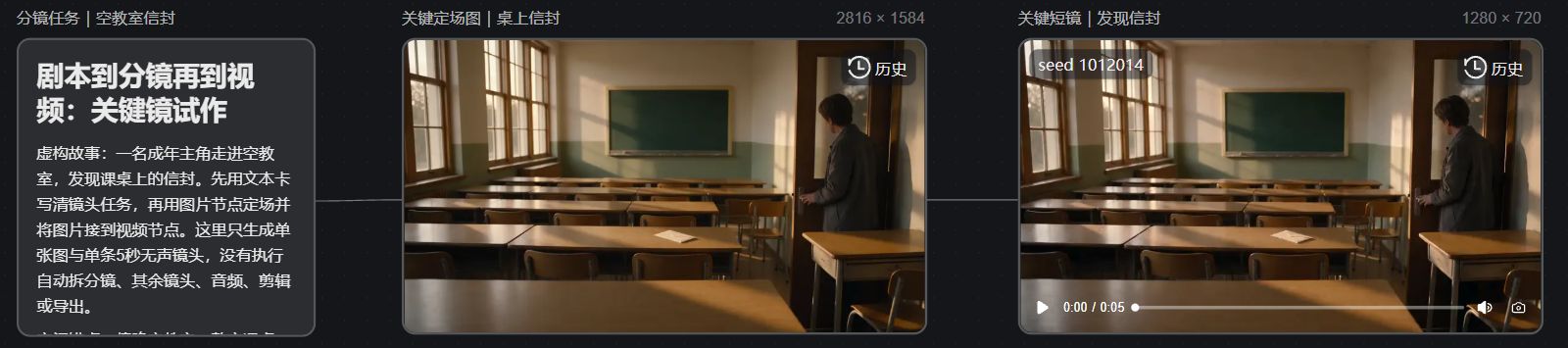
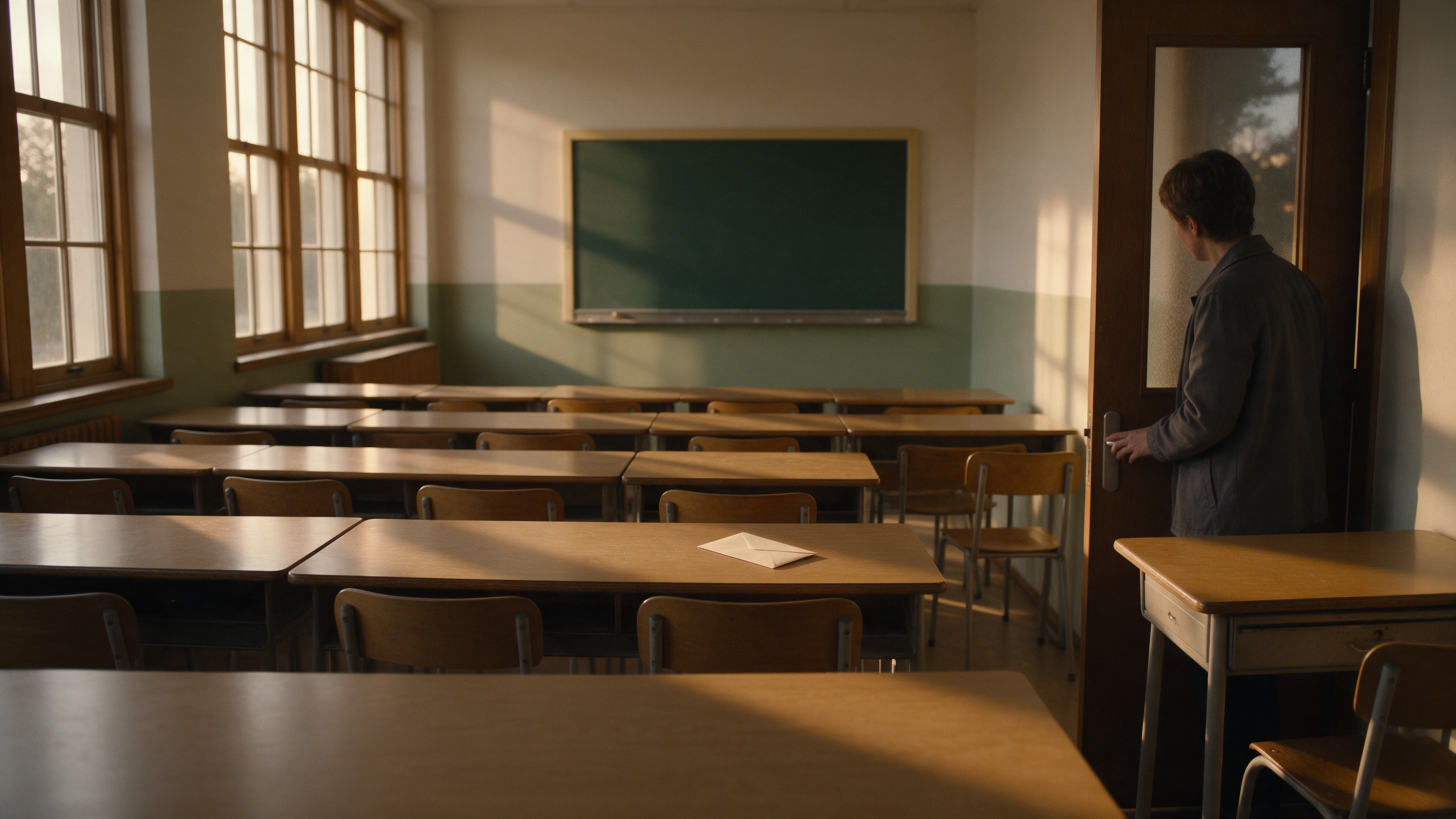
The sample clip shows the set of visual elements—the classroom, the person, and the envelope on the desk—which can serve as a starting point for subsequent storyboard discussions.
Validation scope: This example did not have the system automatically break down the entire scene into storyboards, nor did it produce additional shots, sound, editing, or a finished export; therefore it can only demonstrate the trial workflow for the key shot and cannot replace a full-process acceptance. In this trial I used Seedream 5.0 Pro to generate a 16:9, 2K image, then used Seedance 2.0 Mini to make a 5-second, 720p, silent video; the estimated costs before submission were 3 and 7 credits respectively, and actual charges are subject to the platform's records.
Choose your entry point first: do you work from a script or iterate as you go?
If you already have a script, prioritize using the Film & TV Creation Workspace. It arranges steps as "Script → Main Body → Storyboard → Production"; the Workspace guide lists ways to upload a script, upload a novel, or create without a script. You can first verify the characters and scenes extracted by the system, then adjust the storyboard and produce shot by shot.
If you need to view reference images while comparing different frames, the Free Canvas is more suitable. Image, video, and audio assets can be organized via nodes; the storyboard node can split text into shots, and the editing node can assemble generated clips. The Free Canvas guide explains the purposes of these nodes. The Workspace and Canvas are different creation modes; when choosing, consider your production habits rather than mixing instructions for both entry points into one workflow.
If you don't even have a script yet, start with the Script Space. After uploading a novel, story outline, or existing script, review whether the outline, character settings, and scene divisions are reasonable, then connect the confirmed script to the Workspace. The Script Space guide provides this path.
How does a short film go from text to video?
Using a short piece about "the protagonist walks into an empty classroom and discovers an envelope on the desk" as an example, you can proceed like this. This is a demo storyline and not a ready-made project provided by the platform.
-
Clarify the scene task: This scene should let the audience know who enters the classroom, what is discovered, and why they should keep watching. First remove background narration that cannot be presented within the short film.
-
Define characters and setting: Determine the protagonist's appearance, clothing, and classroom layout, and save the reference images as final versions. Use the same set of references for subsequent shots as much as possible; do not re-describe a face for each shot.
-
Review the storyboard: Break "entering — seeing the envelope — picking up the envelope" into shots, and check if character positions, eyelines, and props align. Automatic shot-splitting is only a draft; shot scale and sequence must be manually confirmed.
-
Generate shot by shot: Start with the most critical shot. If the envelope's appearance, the character's action, or spatial relationships are incorrect, revise the references or the shot description first; after confirming the direction, produce the remaining shots. The Media Generation Guide explains the optional generation methods for image and video nodes.
-
Edit and review: Assemble the shots in narrative order, add required audio, check whether characters change appearance, whether actions can be stitched smoothly, and whether the information is understandable, then export.
The value of this path is that each step has verifiable intermediate results: script, character design, storyboard, single-shot segments, and the finished film. If problems arise, you can revert to the corresponding stage for modification instead of having to redo the entire video.
Which tasks still require human input, and when should you switch to other tools?
The platform will not make the final judgment for creators on whether the script has conflicts, whether the storyboard clearly conveys movements, or which generated results are usable. Especially for multi-character dialogue, complex motion, and continuous actions, first validate with short shots before deciding whether to split shots further or do additional shoots.
If you already have a mature editing workflow, you can also use Nadou Pro only for script organization, storyboarding, or shot generation, and then use your existing tools for post-production. "Whole-process" means the platform provides connecting stages, but it does not mean every project must be finished in one tool. Costs and available models will vary with the task; before formal production you can estimate audition and rework budgets based on the credits consumption shown on the page.
To verify whether it suits you, start by producing a few consecutive shots from a single scene. If the script, character references, storyboard, and videos can connect together, then decide whether to scale up to a full episode.