How to Generate AI Photorealistic Videos: From Preparation to Final Cut
How to Generate AI Photorealistic Videos: From Preparation to Final Cut
I did a photorealistic single-shot exercise in Nadou Pro called “person by the window looking up”: a 2K reference still plus an approximately 5-second silent short, with pre-submission estimates of 3 and 7 credits respectively, totaling an estimated 10 credits. When making AI photorealistic videos, first clarify who is in the frame, where the light comes from, and what the person is doing; then prepare reference images, break down the shots, and generate them shot by shot. No amount of “hyperreal” or “8K” in the description can replace these concrete requirements. The image should approach the feel of real filming—lighting, materials, and spatial relationships must align, and when it moves it must hold up to scrutiny.
Start with a scene you can inspect clearly
Walking characters, handheld products, and indoor interviews each have different requirements for the image. For a first attempt, choose a single subject and simple actions, and focus on whether you can control the results.
First list the things that must not be wrong. For people, check facial features, hairstyle, clothing, and actions; if you are shooting a product, pay attention to packaging text, shape, and proportions. Choose clear reference images, and do not mix different outfits, conflicting lighting, or different product versions within the same set.
Write prompts that specify concrete visual relationships
Below is a description of a fictional practice:
A person sits at a wooden table by the window and slowly looks up toward the doorway. Fixed medium-close shot; soft light from outside the window enters from the left; the clothing retains fabric texture; the cup on the table remains still.
It indicates who is doing what, where the light comes from, and how the camera observes. As for focal length, depth of field, and film style, you can add them as needed; these terms express visual intent but do not prove the generated image conforms to real photographic parameters.
When you already have reference images, focus on describing the actions and the features that must be preserved. Review any content the prompt-assistance tools add to avoid them arbitrarily adding people, props, or complex camera moves.
Make reference images and storyboards first, then generate clips
In Nadou Pro, you can first organize characters and scenes, then arrange shot sizes, actions, and shot order through storyboarding. The workspace provides corresponding staged production entry points. Nadou Pro workspace guide
A scene can be split up. If a person pushes a door into the frame, first check whether the door-opening action works, then proceed to the shot after the person enters. If all performance details are squeezed into a single generation, it's hard to tell where to fix problems if something goes wrong.
For each generated segment, first compare it with the original reference and record any appearance or action deviations. Image blending and multiple references are used to provide creative basis; they are not for training exclusive identity models, nor do they guarantee that faces will remain consistent across shots.
Photorealistic effects need to be verified in motion
Item to check | What to pay attention to |
|---|---|
Person | Whether facial features change when turning the head; whether hand-object contact is plausible |
Materials | Whether fabric, skin, and metal change their properties appropriately with movement |
Light and shadow | After the person moves, whether shadows and reflections keep up |
Space | Whether door frames, tabletops, and background lines undergo unreasonable changes |
Shot continuity | Whether prop positions, the person’s orientation, and clothing can be matched |
Capture a frame to make details easier to see; play the entire segment to check for flickering and whether the motion is smooth. You must check both during acceptance — don't only keep the prettiest frame.
If you find problems, return to the corresponding stage to make changes
If the reference images themselves are wrong, correct them first; if an action is too complex, split the shot or simplify it; if a segment is basically correct but the pacing is off, hand it to editing for adjustment. The platform's image face retouching should not be directly interpreted as video face repair, and high-definition processing cannot guarantee correction of incorrect structure and motion. Nadou Pro image and video features documentation
Add the required narration, ambient sound, and music during editing, and unify subtitles and color grading. Finally, view it at the actual release size: is the person still clear, is the product information accurate, and do the sound and action correspond? Photorealism is an image style — you should not present generated clips as recordings of real events.
Real canvas case: photoreal single-shot of a person by the window looking up
In the Nadou Pro case canvas I specified the test-shot boundaries and then connected the reference still and video nodes in sequence. The sample character and scenes are fictional constructions and are not recordings of real people or real events. This test only verifies the lighting, clothing, face, and the stationary cup in a single indoor shot; ensuring consistent characters across multiple shots, voiceover, and editing still need separate work.
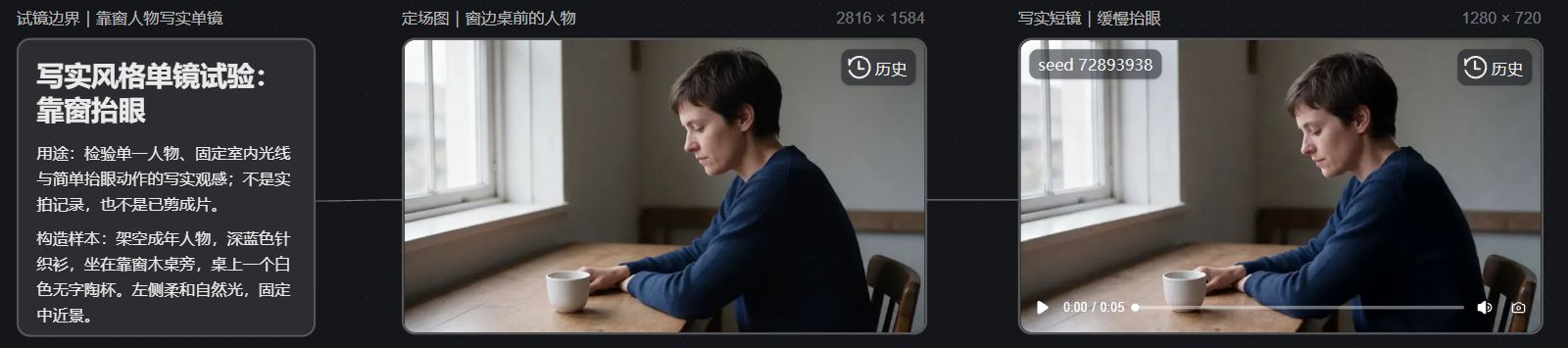
The reference still generated by Seedream 5.0 Pro is actually 2816×1584. The image shows a short-haired adult wearing a dark blue top sitting at a wooden table, with window light entering from the left and a white cup visible on the table. It can serve as a visual reference for this shot, but it does not prove that faces and lighting are stable throughout the video.
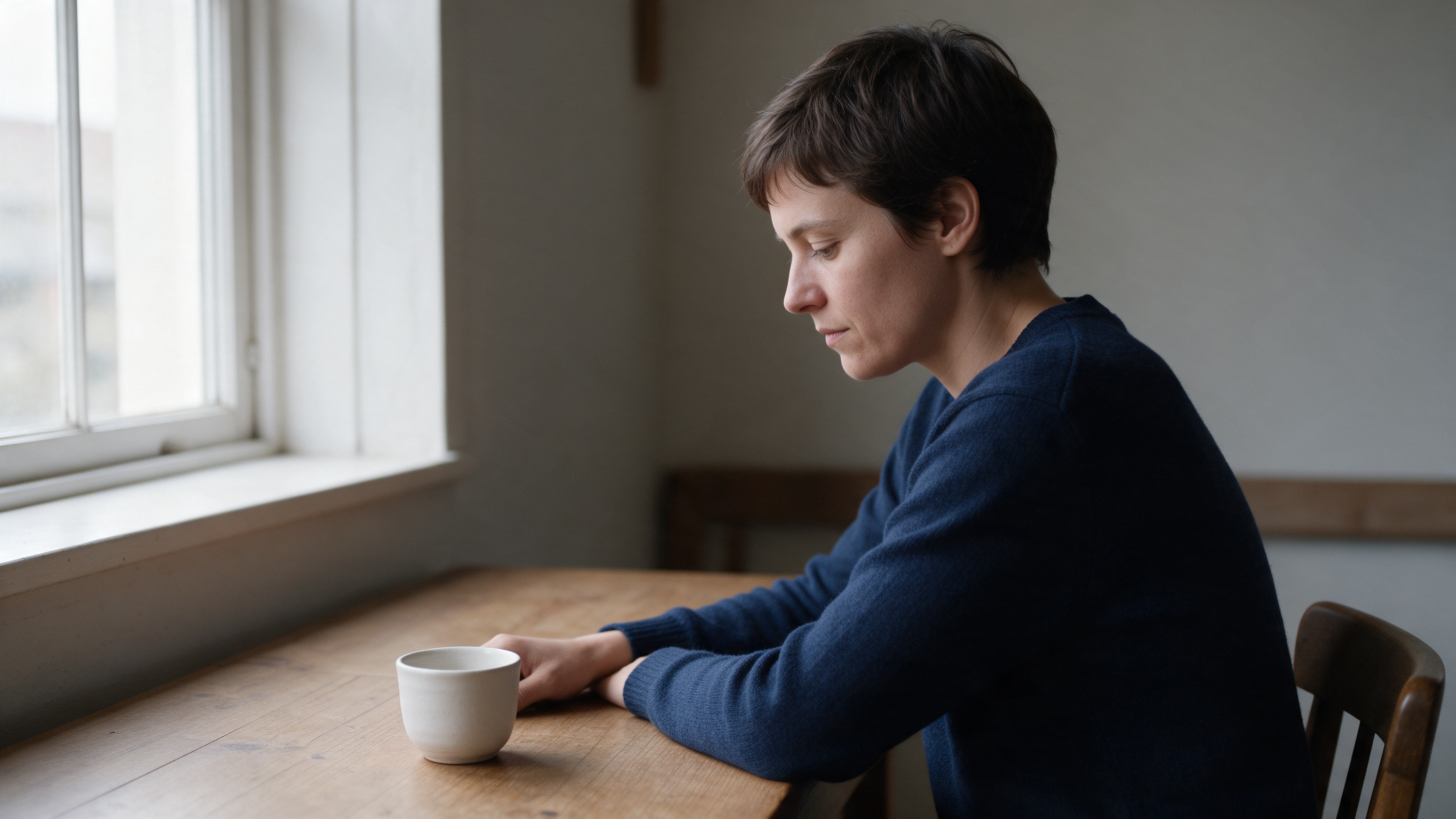
Using that image as a visual reference, Seedance 2.0 Mini generated a 1280×720, approximately 5-second, silent short clip. The web page's first frame shows a similar short-haired person, dark blue top, left-side window light, white cup, and wooden table, indicating that the main reference elements carried over. A first frame resembling a still image cannot prove the entire clip is free of flicker, that faces are stable, or that motion is natural; you should play the whole clip and check items one by one before deciding whether it can proceed to editing.
The image below is a screenshot of this real canvas web page; the test-shot description, image and video nodes, and connections can be checked on the same screen.