
AI Ad Video Auto-Generation Tools: How to Choose and Implement Them
AI Ad Video Auto-Generation Tools: How to Choose and Execute Production
I used a fictional unbranded desk lamp in the NadouPro canvas to shoot a 5-second product shot to verify the basic workflow from reference still to short video. The image and video were each quoted at 3 and 7 credits respectively before submission, totaling 10 credits; actual charges are subject to the platform's records. This is not a 30-second vertical ad, and no placement performance testing was conducted.
To make AI ad videos, you can first look into Jimeng AI, Keling AI, and NadouPro. Jimeng and Keling provide text-to-video and image-to-video generation capabilities; NadouPro also offers a workspace that advances production by script, subject, and storyboard. First determine whether you need a dynamic shot or a full-script ad, then test with your own product assets to better judge whether a tool is suitable.
“Auto-generation” here covers production steps such as shots, audio, or storyboards. To deliver a branded ad, you also need to verify product appearance, copy for selling points, and the edit. The three tools listed below are starting points; they are not a complete list nor a ranking by effectiveness.
Practical Case: Single Product Shot of an Unbranded Desk Lamp
I limited the shot to a frosted white desk lamp on a light wood table under soft indoor lighting, generated 16:9, 2K reference stills with Seedream 5.0 Pro, then used Seedance 2.0 Mini with that image as reference to generate a 5-second, 720p silent short video. First check whether the subject outline and lighting can support later creative work, then decide whether to add branding, selling points, and editing.
Open the NadouPro example canvas to verify the task card, assets, and connections.
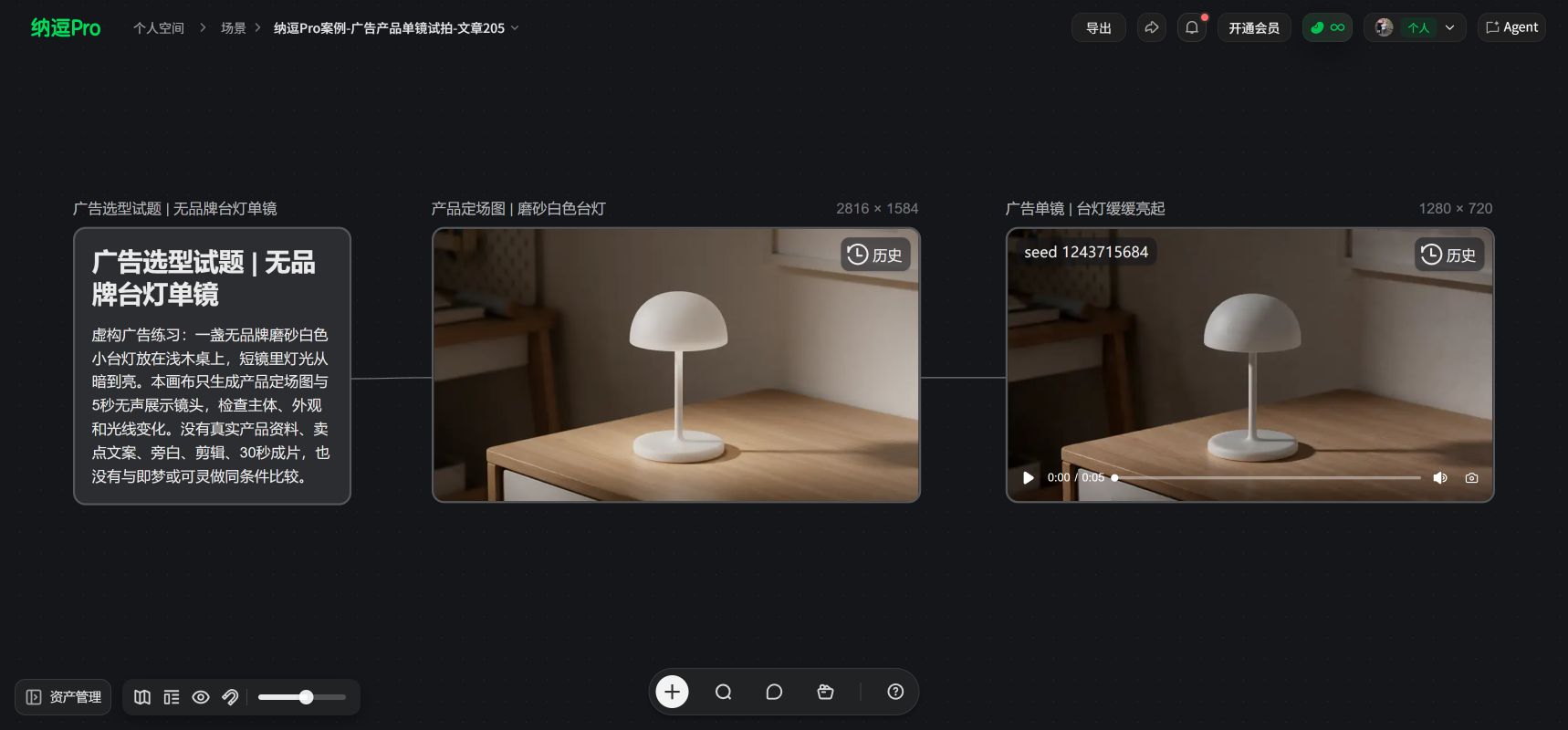
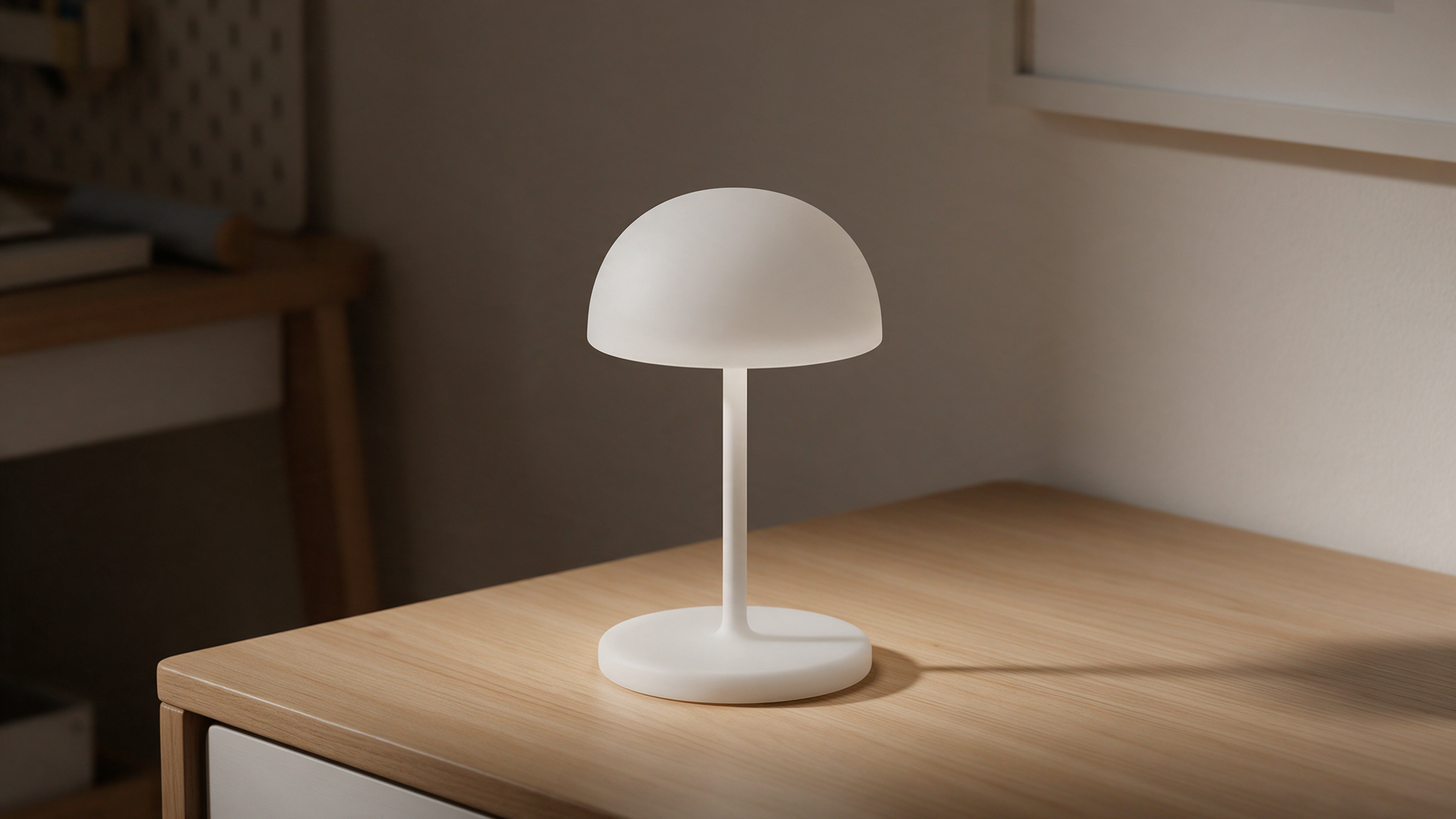
The real canvas retained an instruction card, the reference still, the short video, and two source connections. The lamp and tabletop composition are clear, but this single shot lacks copy, a brand logo, voiceover, or a closing call-to-action, so it is not a complete ad ready for direct placement.
Scope of validation: Only a single silent product shot in NadouPro was tested; a 30-second ad, brand information verification, final editing delivery, or cross-platform comparison were not completed.
Which tools exist and what they can be used for
Tool | Capabilities Described in Official Materials | Trial Tasks to Try When Selecting |
|---|---|---|
Jimeng AI | Generate video from text input, or extend dynamic footage using reference images | Use the same product image to try producing a display shot to see whether appearance and motion meet requirements |
Keling AI | Text-to-video generation, image-to-video generation, and video continuation | First create a product or scene shot, then check motion and transition quality |
NadouPro | Workspace that progresses production step-by-step by script, subject, storyboard, and creation | If you already have an ad script, try breaking it into shots to check whether per-shot production is convenient |
Capability references: Jimeng AI video generation documentation, Kuaishou Keling AI feature announcement, NadouPro workspace guide. The trial tasks in the table are selection suggestions and are not the result of same-condition tests across all three tools; they should not be interpreted as indicating that the tools only have the functions listed.
The Keling announcement cited was published in 2024 and is only used to describe capabilities that have been publicly disclosed. Specific models, durations, pricing, and commercial conditions should be checked on each product's current page before use.
How to choose: start by testing a real shot
If you only have product images and your goal is to add a dynamic display shot, start with image-to-video. If you already have a full script and need to link multiple shots into an ad, include storyboard management, asset reuse, and editing workflows in your comparison. NadouPro's workspace can be a candidate for the latter need, but whether it is truly suitable still needs to be validated with your own assets.
When testing, give candidate tools the same product images and scene requirements. Focus on these points:
-
Has the product appearance changed? Check packaging color, shape, and text—don't only judge by whether the footage looks attractive.
-
Is the issue easy to fix? Record how failed shots are regenerated or replaced, and whether changes affect other confirmed content.
-
Is downstream production convenient? Decide in advance who will edit the shots, how voiceover will be added, and how assets will be handed off.
-
Is the cost acceptable? Record how many generations it took to get a usable shot, then reconcile credits consumed, export conditions, and asset licensing.
There is still a gap between “can generate video” and “suits this ad task”; that gap is closed by a trial with clear acceptance criteria. When the budget is limited, validate the most difficult product close-up first before deciding whether to produce at scale.
How to make a 30-second ad: the NadouPro example
Below is a demonstration of a production approach using NadouPro. This article is content within the NadouPro site; choosing it as an example does not imply it is the best-performing tool among those mentioned above.
Assume you want to make a 30-second vertical product display ad. This setup is for explaining the workflow and does not correspond to a finished sample; actual duration, aspect ratio, and content should follow your placement requirements.
First, write down clearly what the ad needs to say
Prepare a front product image, detail shots, brand logo, and verified product information. Write down the target audience, one primary selling point, necessary supplementary information, and aspects of appearance and copy that must not be altered.
For example, you could define the task as: “Use 30 seconds to introduce the product's appearance, one verified feature, and a usage scenario, then display the brand name.” When referring to efficacy, sales numbers, etc., ensure you have verifiable sources; do not leave such claims for the model to invent.
Break the content into verifiable shots
You can draft a storyboard as in the table below. Time allocations are illustrative and should be adjusted to fit the voiceover and visuals.
Time | Visual Task | Key Checks |
|---|---|---|
0–5 seconds | Show the product and usage scenario | Can viewers understand what is being introduced? |
5–12 seconds | Show appearance or key parts | Does shape and color match the real product? |
12–22 seconds | Explain one verified selling point | Do the visuals and copy correspond, and is there any exaggeration? |
22–27 seconds | Supplement usage scenarios | Are actions reasonable and is there any product distortion? |
27–30 seconds | Brand hold/frame | Is the brand text accurate and legible? |
At this stage, check that the information is complete. You can change the number of shots and duration; don't add irrelevant footage just to fill 30 seconds.
Generate storyboards and assets on a free-form canvas
Here we choose NadouPro's free-form canvas mode: create a new canvas, add a script text node, then use the “split into shots” one-click function after placing the script. Shot nodes support generating storyboard images and shot videos. See the Free Canvas Guide for operation entry points and UI screenshots.
After generation, compare each shot to the script. If a shot misses a selling point, repeats the same information, or misrepresents the product appearance, modify it before proceeding. For small text on packaging and brand marks, keep the original assets for verification; reference images can help generation, but final accuracy must be checked.
If you need voiceover or music, use the corresponding functions as described in the NadouPro audio and video generation guide, then enter the editing stage to arrange visuals and sound. Also verify the permitted usage scope for music, tones, and other assets.
After composition, watch the whole ad from start to finish
Do not only accept individual shots. Play the ad through and check whether viewers can understand the selling points, whether visuals jump, whether subtitles block the product, and whether the closing brand information is clear.
If a particular shot is wrong, locate it precisely: is the reference image unclear, is the required action too complex, or is the text itself unsuitable for generation? Modify according to the issue; if necessary, replace with live-action footage or post-production overlays rather than regenerating the entire ad.
When choosing a tool, first determine what you need to deliver, then validate candidate solutions with the same shot. Once production begins, check the script, product appearance, and final deliverable separately. This lets you see where the tool can help and which parts still require human intervention.